Objective
Teach how to transfer a single page from a website to another account and how the recipient can add that page into an existing website.
Target Audience
Beginner to intermediate users who need to share a specific page without transferring the entire website.
What you need to understand before starting
- The platform transfers websites, not individual pages
- You must isolate the page inside a separate website before transferring
- The page will later be imported as a template into another site
Part 1: Prepare the page for transfer
Step 1: Identify the page
- Open the Website Builder
- Enter the website where the page is located
- Identify the exact name of the page
Step 2: Create a blank website
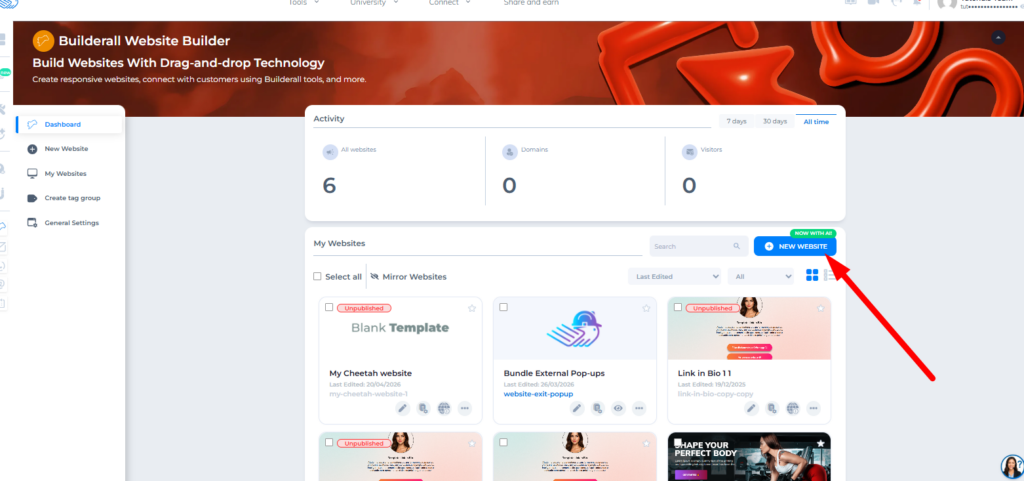
- Click Create New Website
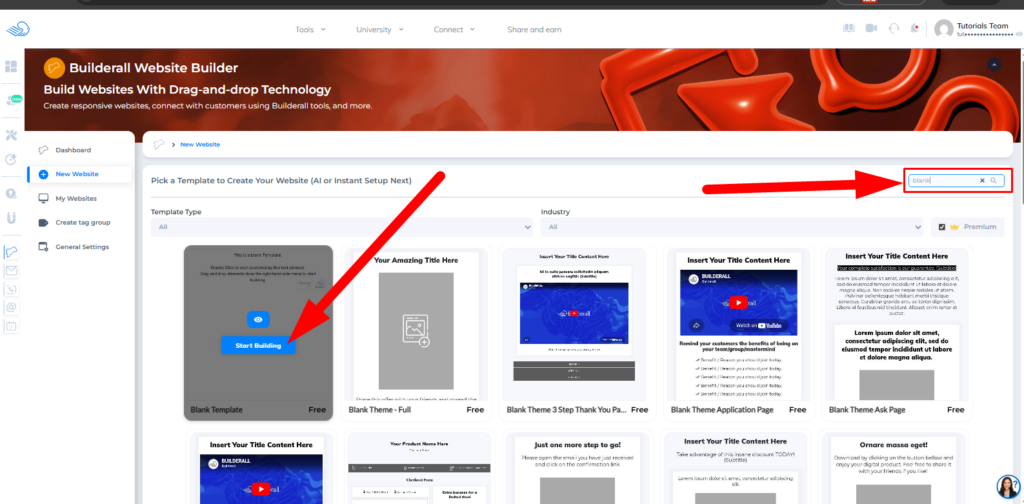
- Select Blank Website
- Confirm creation
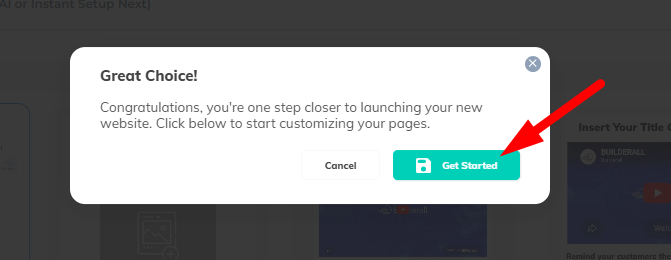
This website will be used only to hold the page you want to transfer.
Step 3: Import the page into the new website
- Open the new website
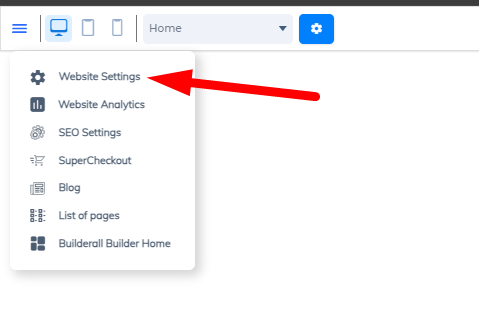
- Click the top left menu icon
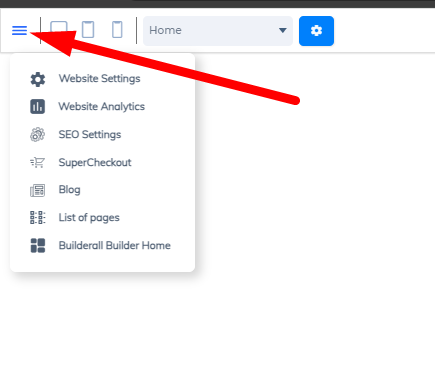
- Go to Website Settings
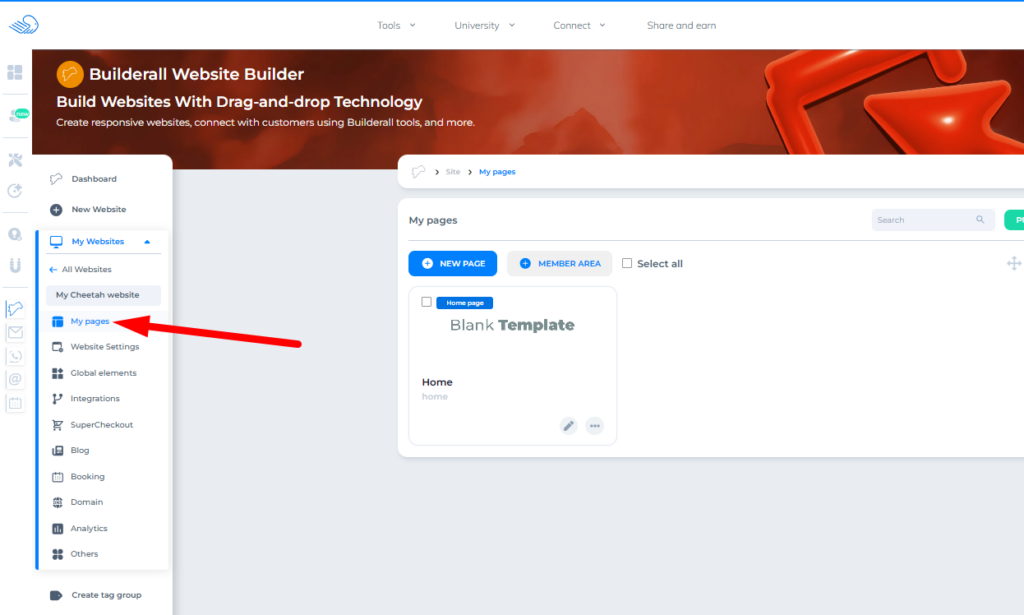
- Access Pages
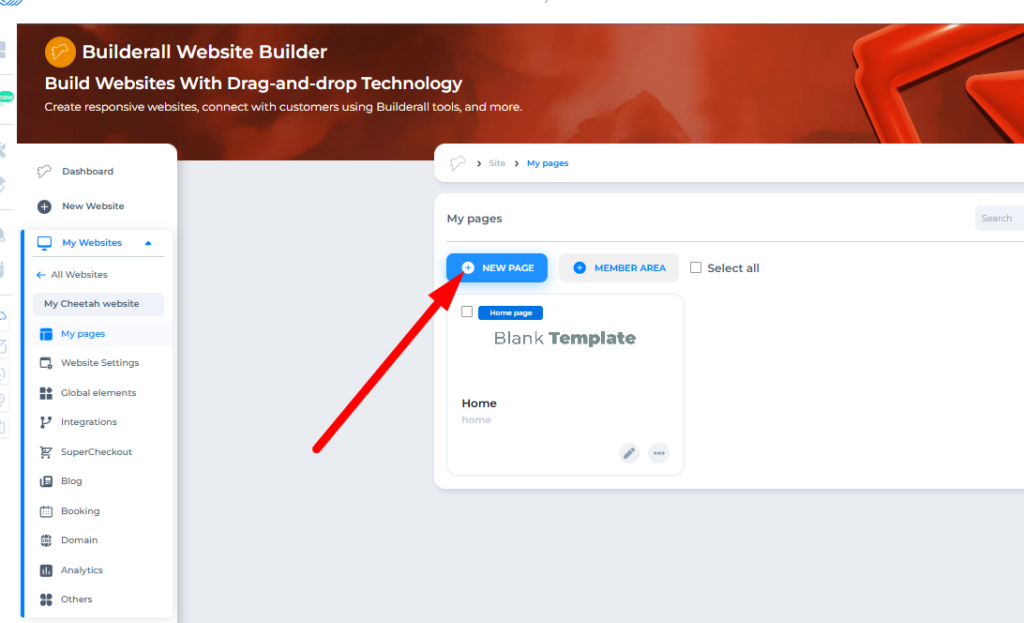
- Click Add New Page
- Enter a name for the page
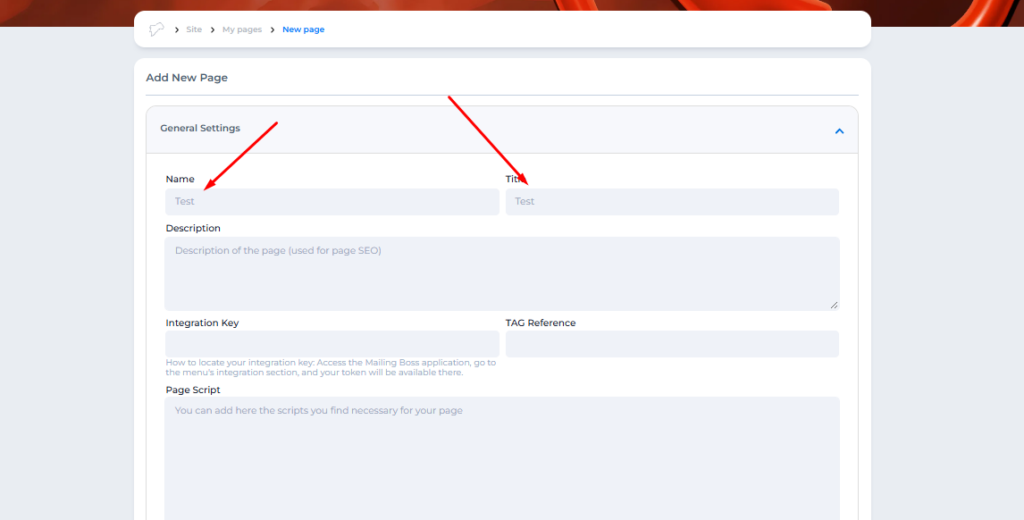
- In Page Template, select My Pages
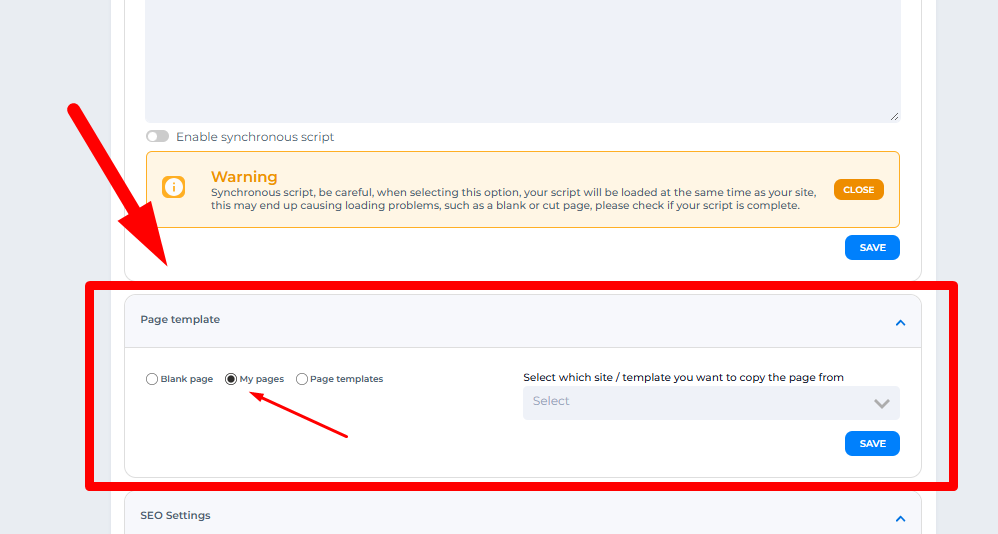
- Choose the original website
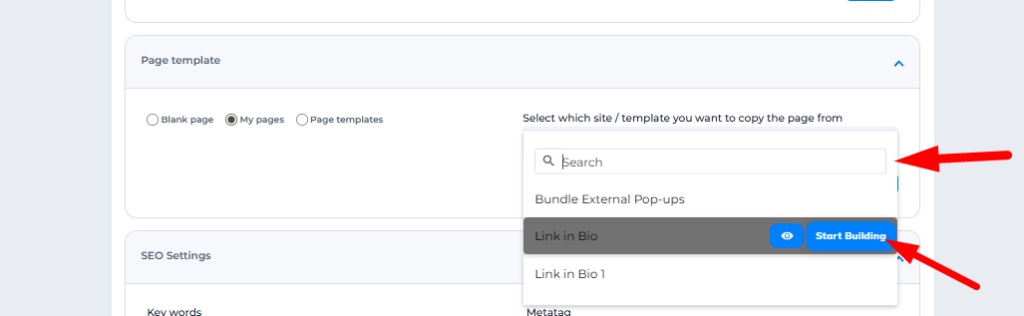
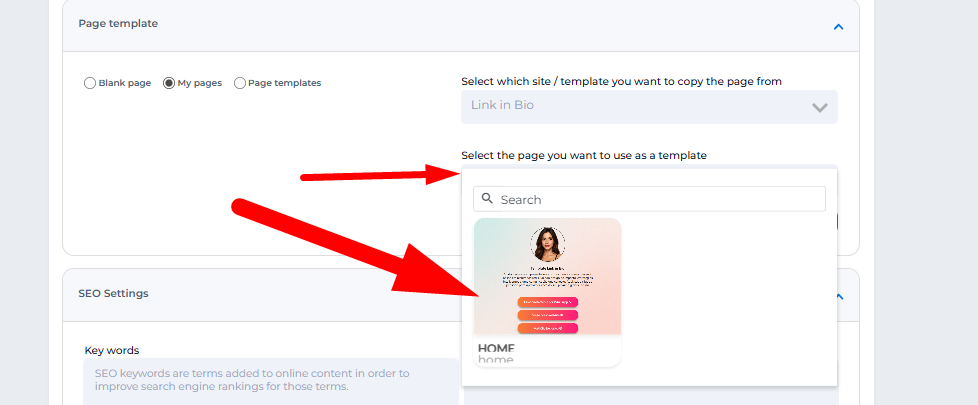
- Select the page you want
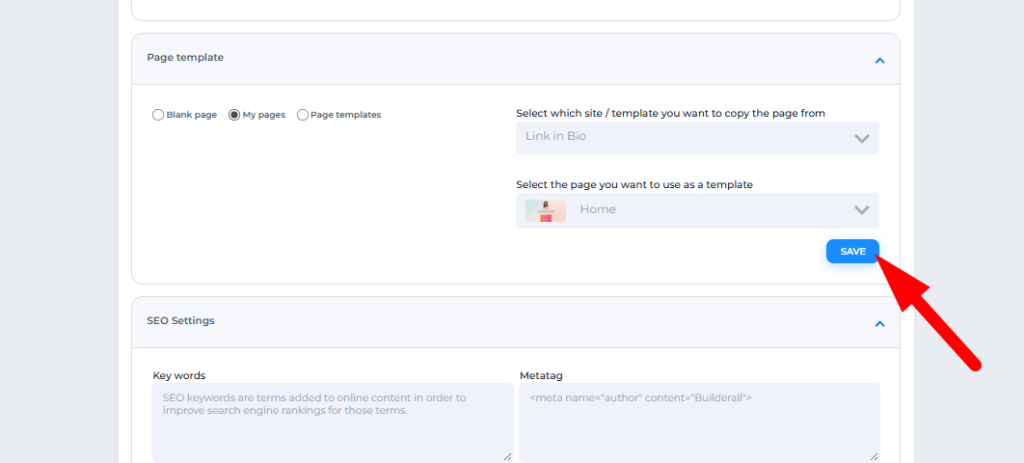
- Click Save
Step 4: Adjust the website
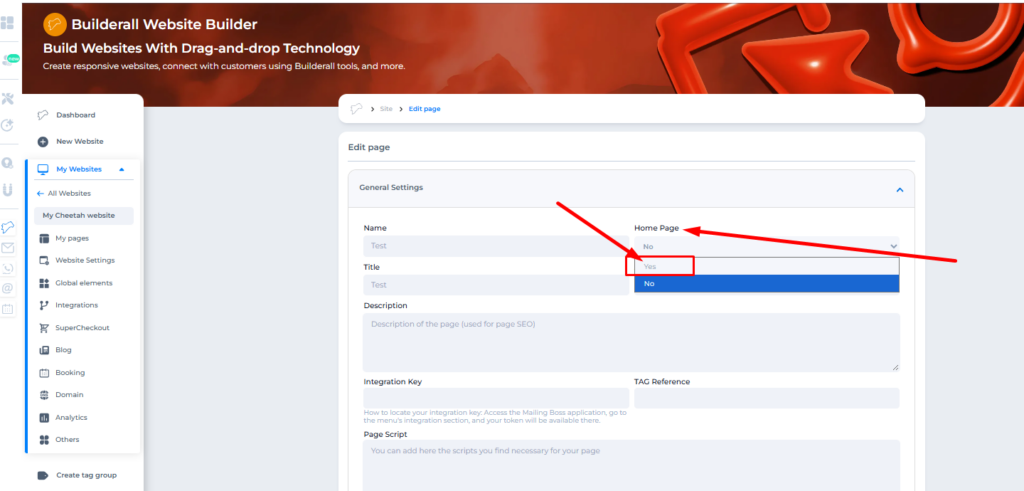
- Enter the page settings again
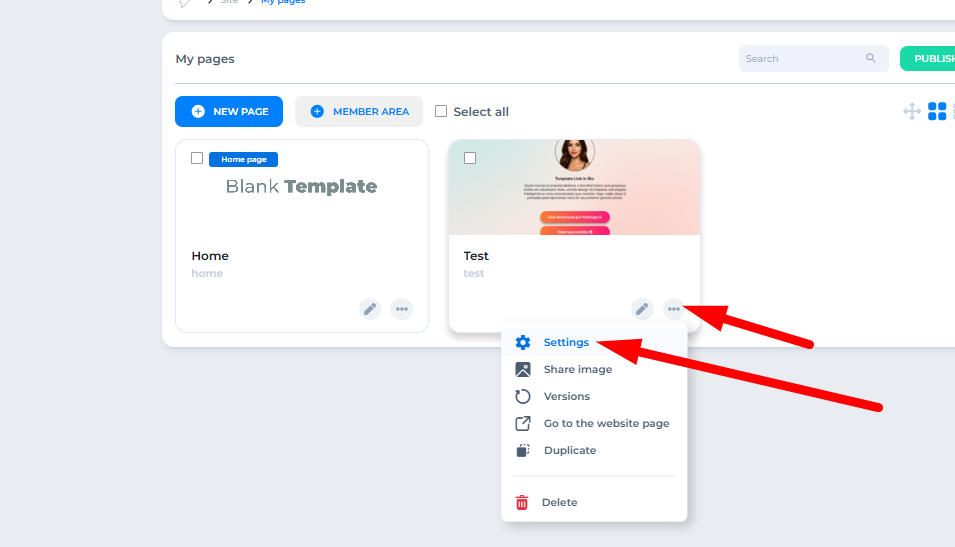
- Set the imported page as the homepage
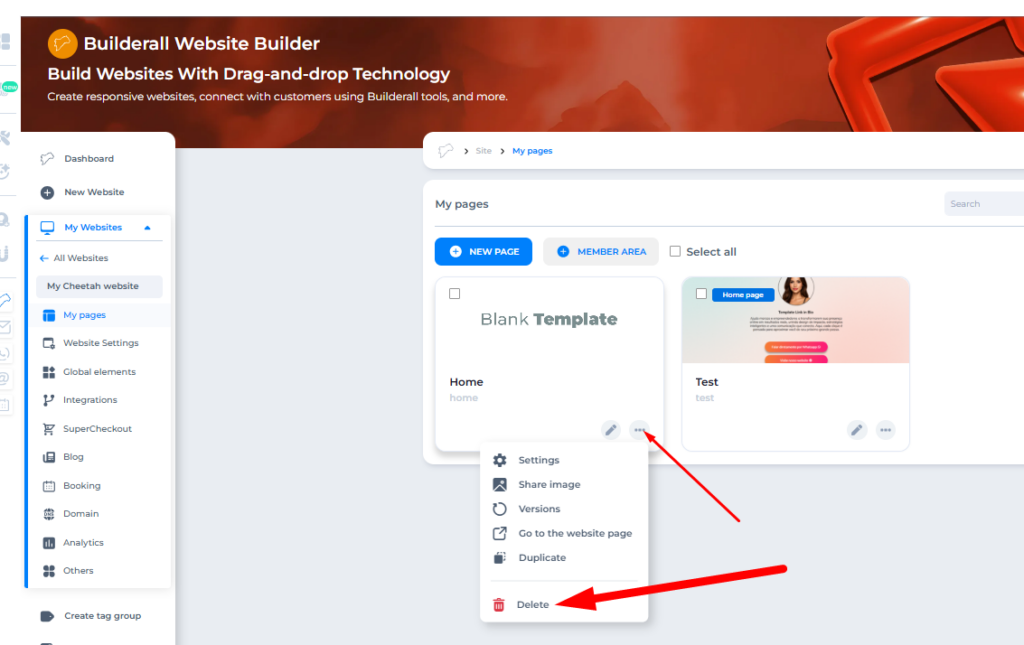
- Delete the default blank page
Result: the website will contain only the page you want to transfer.
Part 2: Transfer the website
Step 5: Send to another account
- Go back to the website list
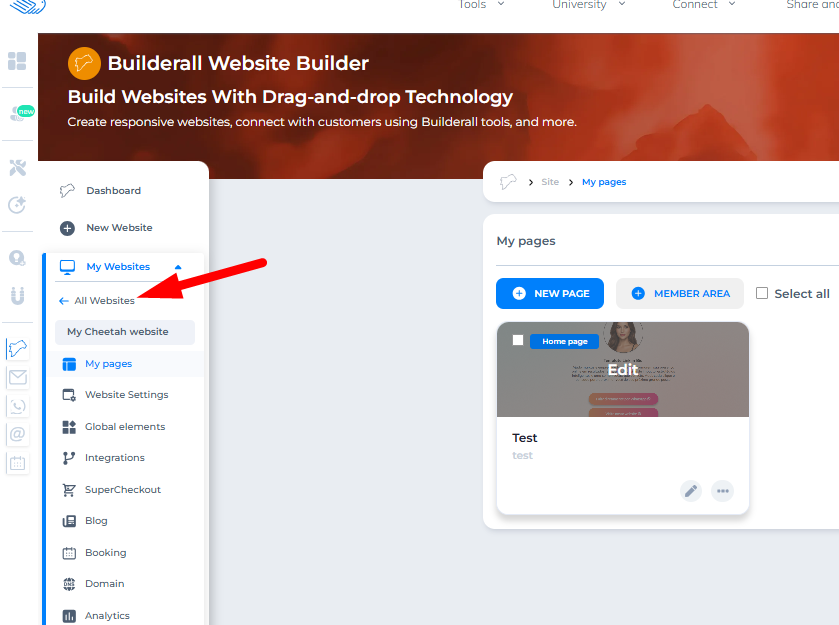
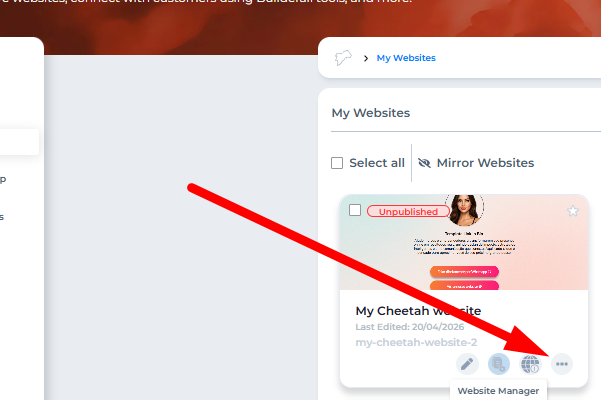
- Click the three dots on the website
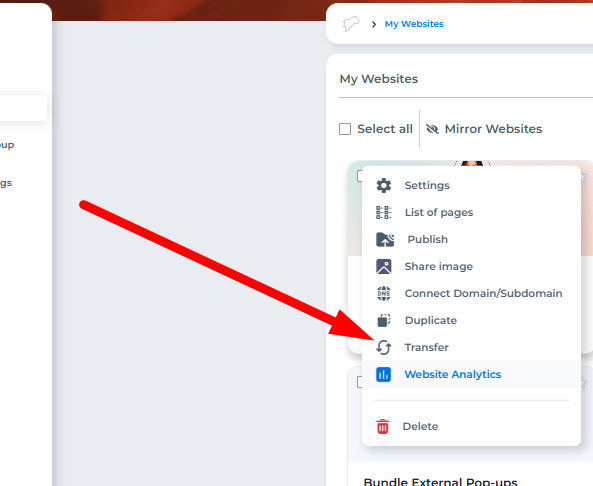
- Select Transfer
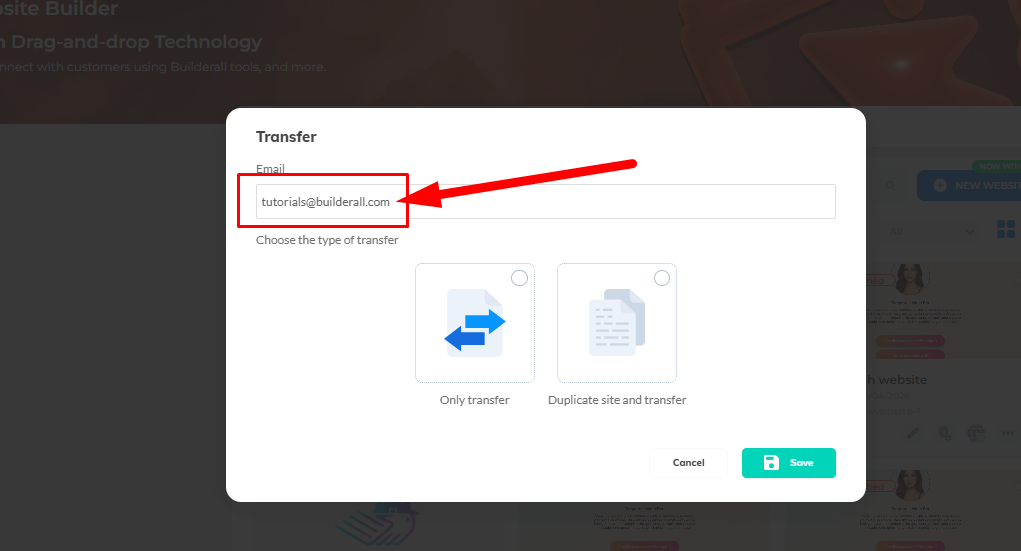
- Enter the recipient account email
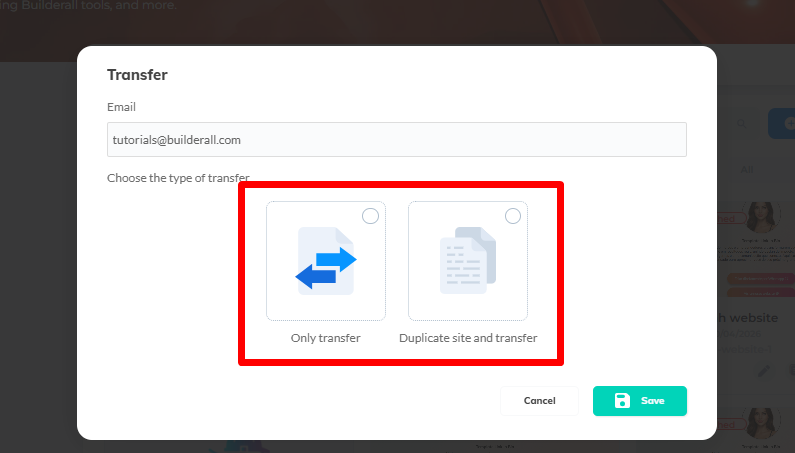
- Choose whether to keep a copy
- Click Save
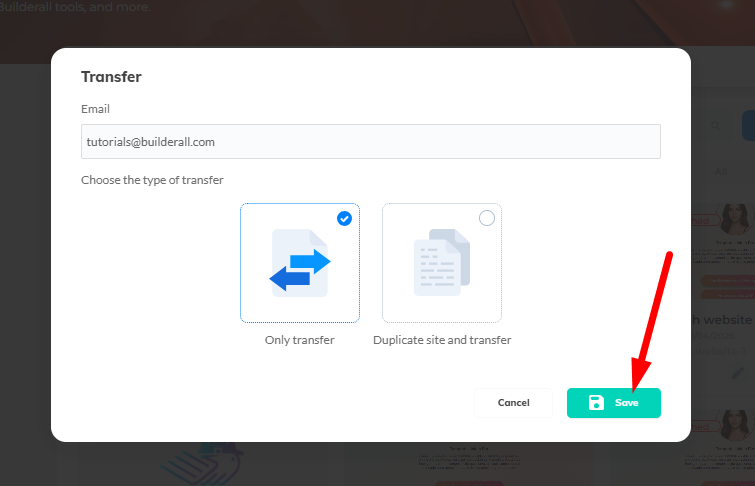
The page is now transferred inside that website.
Part 3: How the recipient uses the page
Step 6: Add the page to an existing website
- Open the target website
- Click Add New Page
- Enter a name
- In Page Template, select My Pages
- Select the received website
- Choose the page
- Click Save
The page will be added to the website.
Tips and Best Practices
- Always isolate the page in a blank website before transferring
- Avoid sending websites with multiple pages when only one is needed
- Use clear naming for easier identification
- Confirm the correct homepage before deleting default pages
FAQ
Can I transfer a single page directly?
No. You must use a website as a container.
Does the page automatically appear in my website?
No. It must be imported manually.
Can I edit the page after importing?
Yes, it behaves like any other page.
Will I lose my original page?
No, if you keep a copy during transfer.
Troubleshooting
Page not showing in templates
Make sure you selected My Pages and the correct website.
Wrong page imported
Delete and repeat the process selecting the correct one.
Cannot delete default page
Set the imported page as homepage first.
Page loads incorrectly
Check if the original page was properly saved before transfer.