Introduction
Capturing leads means collecting information from people interested in your business, such as their name, email address, and phone number.
In MailingBoss, leads can enter a list through forms, landing pages, integrations, or contact imports.
In this guide, you’ll learn how to create a list, configure forms, and start capturing leads successfully.
What You’ll Learn
By the end of this guide, you’ll know how to:
✅ Create a list in MailingBoss
✅ Configure Single Opt-In or Double Opt-In
✅ Create lead capture forms
✅ Publish forms on websites and pages
✅ Capture leads through integrations
✅ Import existing contacts
✅ Verify that leads are being added correctly
Before You Start
Before capturing leads, make sure you have:
- Access to MailingBoss
- A configured domain (recommended)
- A sender email configured
- A clear idea of what information you want to collect
How Lead Capture Works in MailingBoss
Before creating your first list, it’s important to understand the process.
Visitor
↓
Fills out a form
↓
Joins a list
↓
Confirms subscription (when applicable)
↓
Becomes an active subscriber
↓
Can receive campaigns and automations
A list is where your contacts are stored.
A form is the tool used to collect contact information.
Step-by-Step
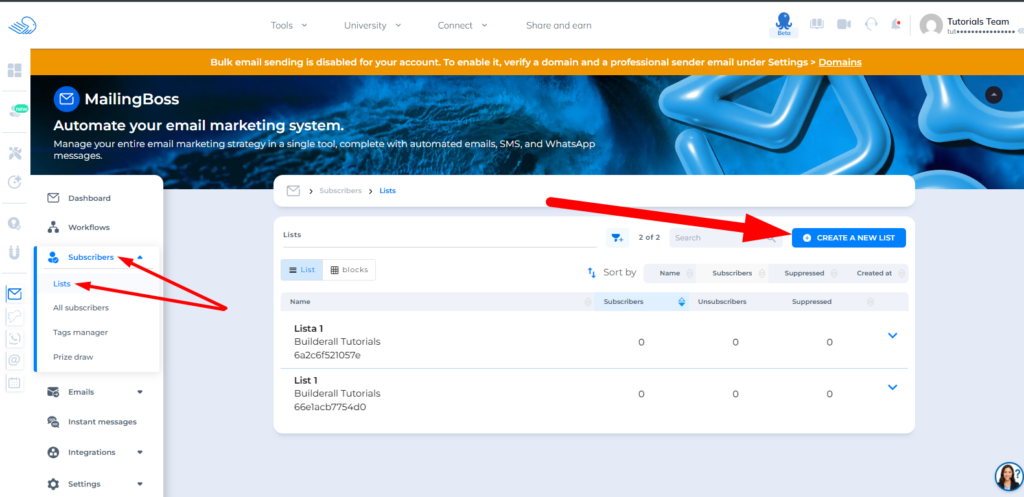
Step 1: Create a List
Path:
MailingBoss → Subscribers → Lists
Click Create New List.
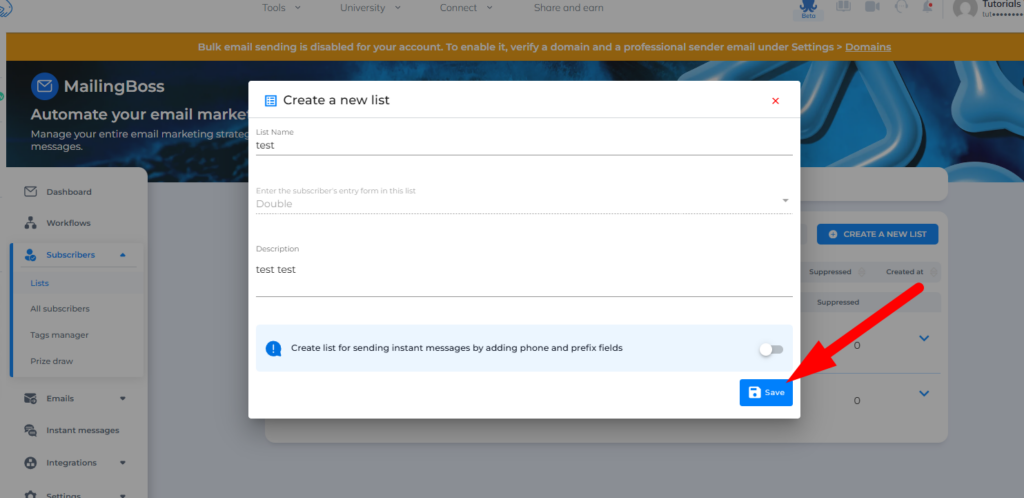
Name Your List
Choose a name that makes it easy to identify.
Examples:
- Ebook Leads
- Webinar Registrations
- Online Store Customers
You can also add a description if needed.
Choose the Subscription Type
You have two options:
Single Opt-In
The contact is added immediately after submitting the form.
Recommended when:
- You want a simpler signup process.
- Your goal is to maximize conversions.
Double Opt-In
The contact receives a confirmation email.
They become active only after clicking the confirmation link.
Recommended when:
- You want a higher-quality list.
- You need stronger proof of consent.
Capture Phone Number and Country Code (Optional)
During list creation, you can enable:
- Country Code
- Phone Number
These fields are useful for:
- WhatsApp campaigns
- SMS campaigns
If you only plan to use email marketing, you can leave these fields disabled.
You can always add or remove fields later.
Save the List
Click Save.
Step 2: Configure the Sender
After creating the list, configure your sender information.
This information will be used in the emails sent to your subscribers.
Configure:
- Sender Name
- Sender Email
- Reply-To Address
The Reply-To address determines where responses from subscribers will be sent.
Important Note
For the best email deliverability, use a verified custom domain.
If your domain was purchased through Builderall, some required configurations may already be handled automatically.
Step 3: Configure Additional List Features
Your list can include additional features.
Welcome Email
Automatically sends an email to new subscribers.
Manual Approval
Allows you to manually approve subscribers before they become active.
Referral Ranking List
Allows subscribers to invite others and participate in referral-based campaigns.
The system tracks who generates the most referrals.
Automatic Re-engagement
Automatically sends emails to inactive subscribers to encourage engagement.
Step 4: Create a Form
Path:
MailingBoss → Subscribers → Lists → Forms
Each list can have multiple forms.
A default form is created automatically, but you can create additional forms if needed.
Click:
Create New Form
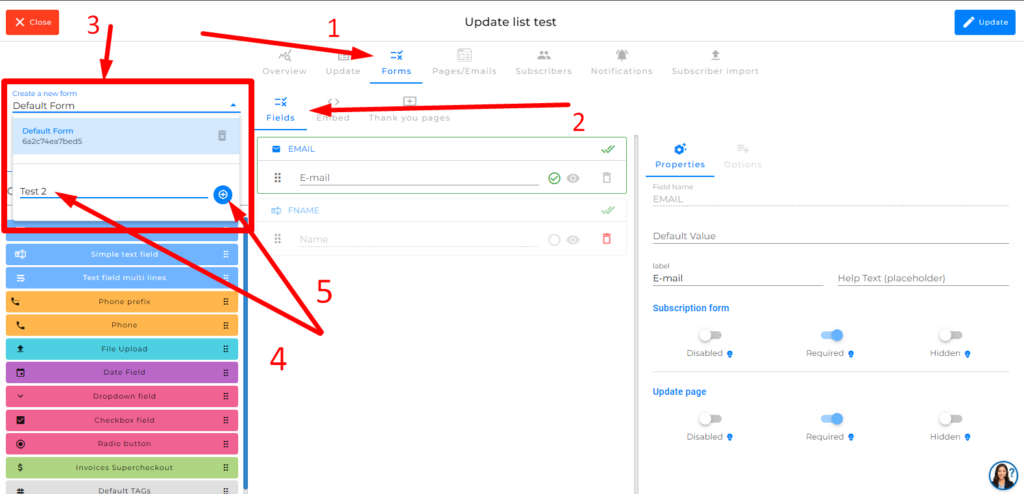
Name Your Form
Examples:
- Ebook Form
- Webinar Registration Form
- Homepage Form
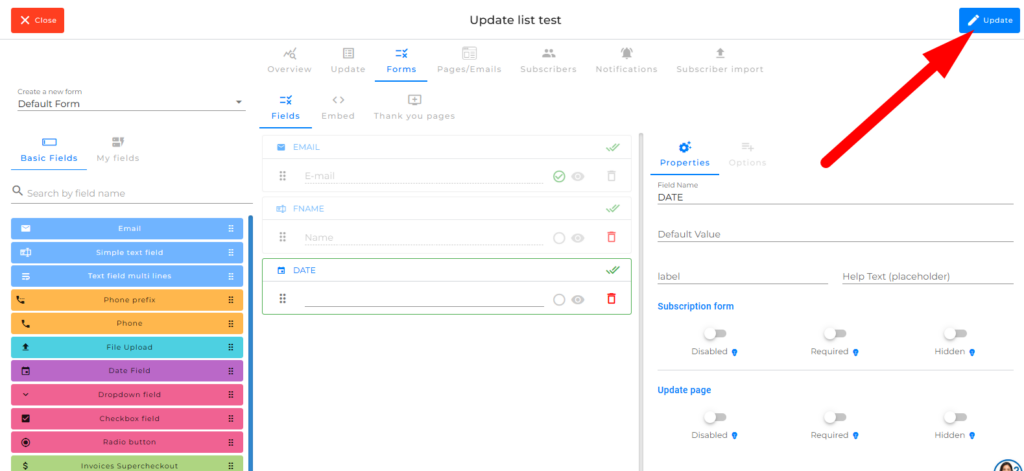
Configure Form Fields
By default, forms include:
- Name
You can:
- Reorder fields
- Remove fields
- Add new fields
Available Fields
Examples:
- Name
- Country Code
- Phone Number
- Custom Text
- UTM Field
- File Upload
File uploads can be used for:
- Resumes
- Documents
- Images
- Other files submitted by visitors
Save Your Changes
Click Update.
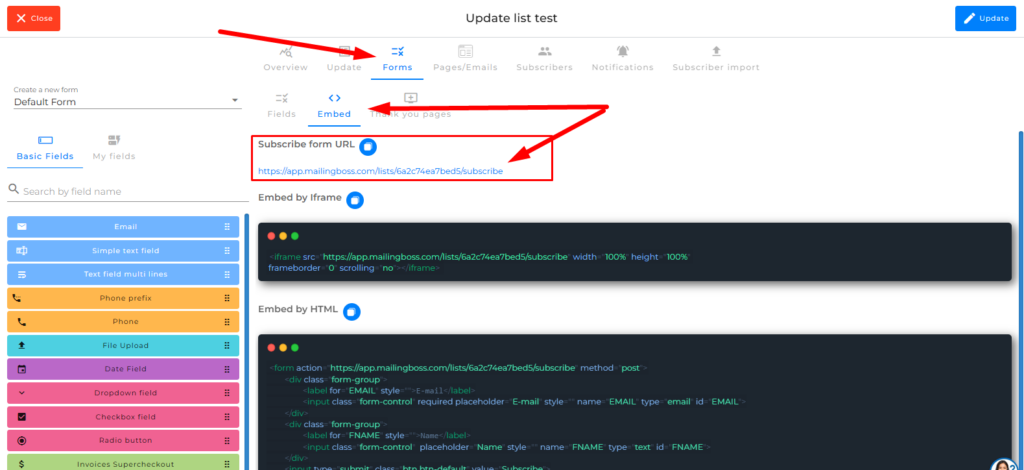
Step 5: Get the Form Link or Embed Code
Open the form.
Click:
Embed
You’ll find:
- Direct Form Link
- HTML Code
- Iframe Code
Step 6: Publish the Form
You can use the form in different ways.
Option 1: Share the Direct Link
Send the form link directly to visitors.
Option 2: Add It to a Builderall Page
Insert the HTML or Iframe code into your page.
Option 3: Add It to Another Website
The code can also be used on:
- WordPress
- External websites
- Blogs
- Any platform that supports HTML
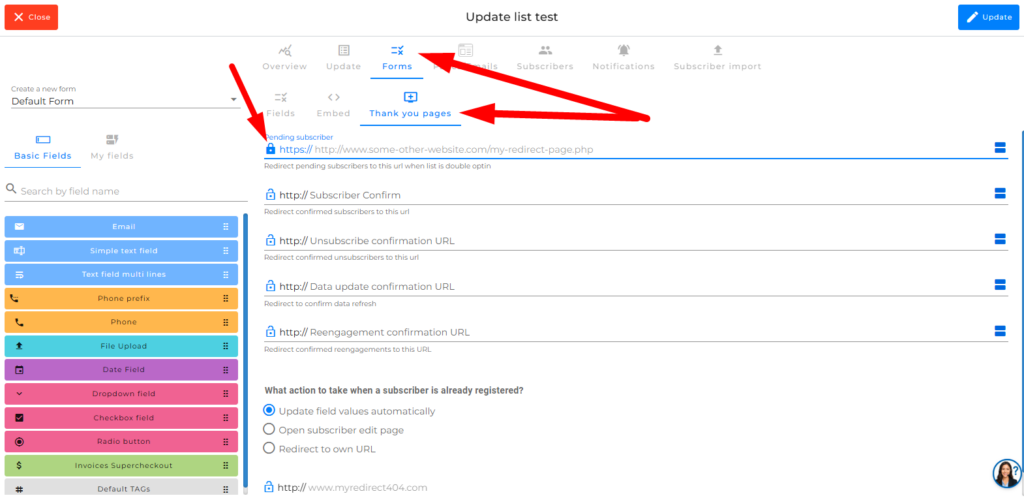
Step 7: Configure Redirect Pages
You can define where visitors are sent after specific actions.
Examples:
After Subscribing
A page explaining the next steps.
After Confirming Subscription
A thank-you page.
After Unsubscribing
A custom page.
After Updating Information
A confirmation page.
Step 8: Test the Lead Capture Process
Before promoting your form:
- Open the form.
- Submit a test registration.
- Confirm the email if using Double Opt-In.
- Verify that the contact appears in your list.
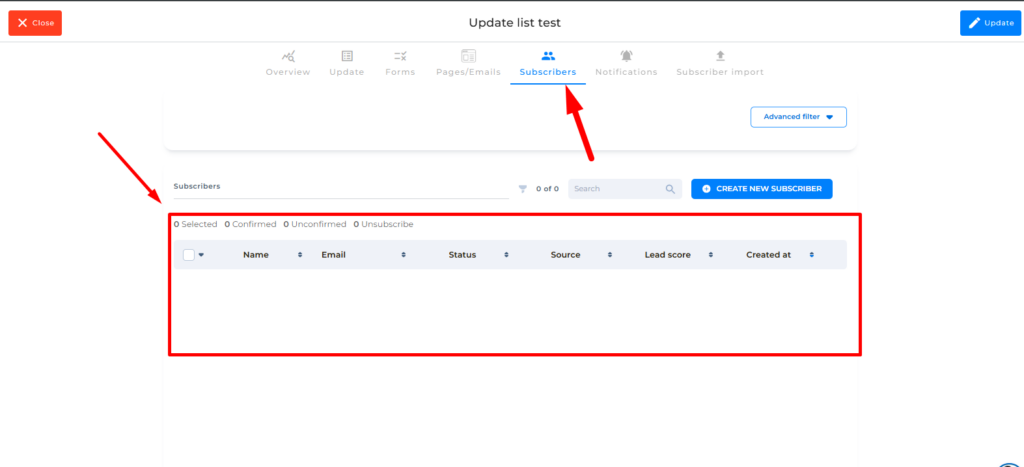
Step 9: Verify Your Subscribers
Path:
MailingBoss → Subscribers → List → Subscribers
You can view contacts with different statuses.
Examples:
- Active
- Pending
- Unsubscribed
- Disabled
Additional Ways to Capture Leads
Import Contacts
Path:
MailingBoss → Subscriber Import
You can upload CSV files containing existing contacts.
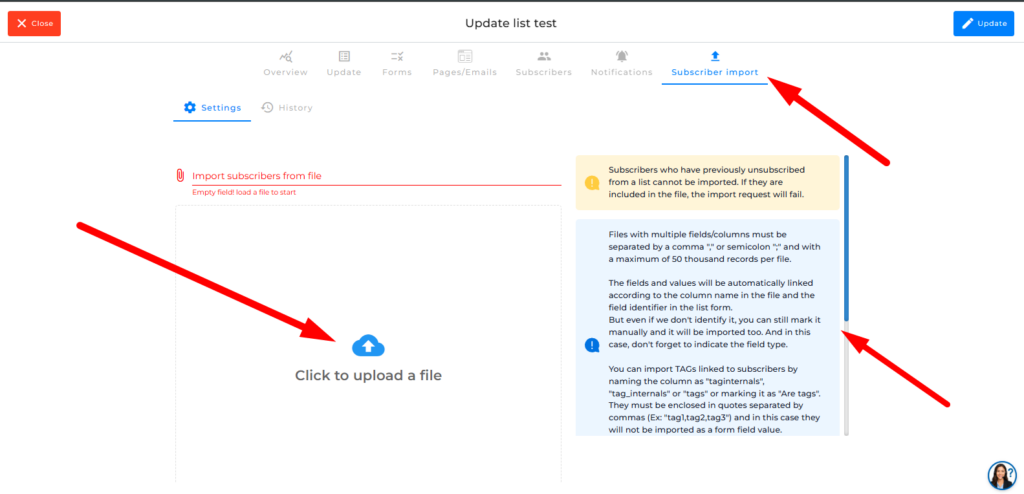
Only import contacts who have given permission to receive your communications.
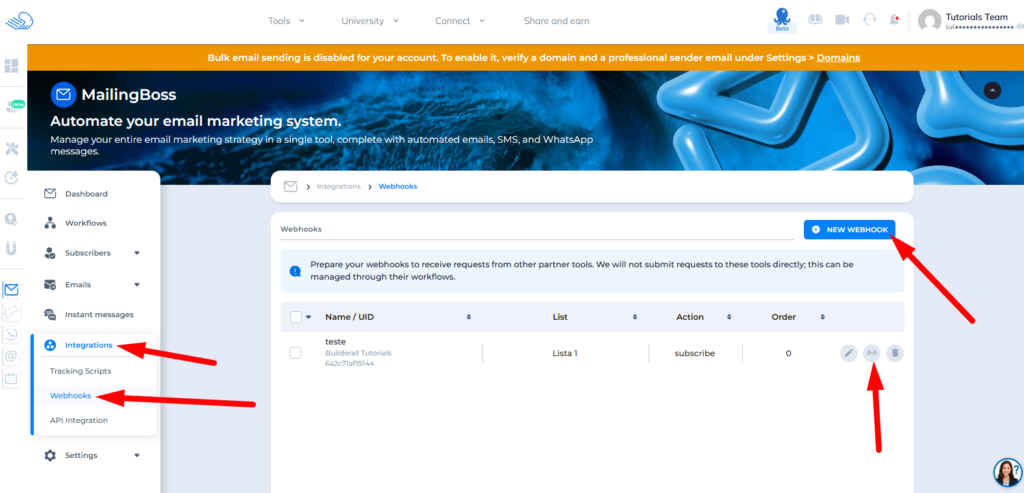
Webhook Integrations
Path:
MailingBoss → Integrations → Webhooks
Webhooks allow external tools to automatically add contacts to a list.
After creating a webhook, use the generated endpoint in your external applications.
Practical Examples
Free Ebook
Visitors enter their name and email to receive a free resource.
Webinar Registration
Visitors complete the form to register for an online event.
Waiting List
Visitors join a list to receive updates about an upcoming launch.
Quote Request
Visitors submit their information to request a consultation or estimate.
Best Practices
Recommended
✔ Use clear names for lists and forms
✔ Ask only for necessary information
✔ Test every form before publishing
✔ Use Double Opt-In when list quality is a priority
✔ Keep contacts organized
Avoid
✘ Creating disorganized lists
✘ Asking for unnecessary information
✘ Buying email lists
✘ Importing contacts without permission
✘ Publishing forms without testing
Troubleshooting
Problem
The contact does not appear in the list.
Possible Causes:
- Signup was not completed.
- Confirmation email was not clicked.
- The form is connected to the wrong list.
Solution:
Review the list settings and perform another test.
Problem
The form does not load.
Possible Causes:
- Incorrect link.
- Incomplete publication.
- Incorrect code placement.
Solution:
Copy the link or code again from the Embed section.
Problem
The contact import failed.
Possible Causes:
- Invalid CSV file.
- Field mismatch.
- Contact source not approved.
Solution:
Review the file and follow the import requirements.
Problem
Contacts remain pending.
Possible Causes:
- Double Opt-In is enabled.
- The subscriber has not confirmed their email.
Solution:
Ask the subscriber to check their inbox and click the confirmation link.
FAQ
Can I have multiple forms in the same list?
Yes. A single list can contain multiple forms.
What’s the difference between Single Opt-In and Double Opt-In?
Single Opt-In adds subscribers immediately.
Double Opt-In requires email confirmation before activation.
Can I collect phone numbers in addition to email addresses?
Yes. You can add phone number and country code fields.
Can I import contacts from another platform?
Yes, as long as they have given permission to receive your communications.
Can I use forms outside Builderall?
Yes. MailingBoss provides direct links, HTML code, and Iframe code.
How do I know if lead capture is working?
Submit a test registration and confirm that the contact appears in your subscriber list.