Overview
Builderall Builder allows you to significantly expand your page customization options using three powerful tools:
- Iframe
- Inline HTML
- Custom Scripts
Although all three work with code, each one serves a different purpose.
Understanding when to use each option will help you avoid errors, improve page performance, and unlock much more advanced functionality.
By the end of this guide, you’ll know:
✅ When to use an Iframe
✅ When to use Inline HTML
✅ When to use Custom Scripts
✅ How to embed external content
✅ How to create custom elements
✅ How to use CSS
✅ How to use JavaScript
✅ How to build calculators
✅ How to integrate third-party tools
✅ How to troubleshoot common issues
Before You Start
The Simple Rule
If you remember only this table, you’ll know which tool to use in most situations.
| Goal | Tool |
|---|---|
| Display external content | Iframe |
| Create custom content | Inline HTML |
| Run code across the entire page | Custom Scripts |
| Apply custom styling | CSS |
| Create interactions and automation | JavaScript |
What Is an Iframe?
Iframe stands for:
Inline Frame
In simple terms:
An embedded window inside your page.
An Iframe allows you to display content that is hosted somewhere else.
Think of it as a screen inside your page that can show another website, document, video, map, or application.
Common Iframe Uses
Videos
- YouTube
- Vimeo
- Wistia
Maps
- Google Maps
Forms
- Google Forms
- Typeform
- Jotform
Scheduling Tools
- Calendly
- Google Calendar
Documents
- PDF files
- Google Docs
- Google Slides
External Systems
- Dashboards
- CRMs
- SaaS applications
How to Add an Iframe
- Open your page in Builderall Builder.
- Click Add.
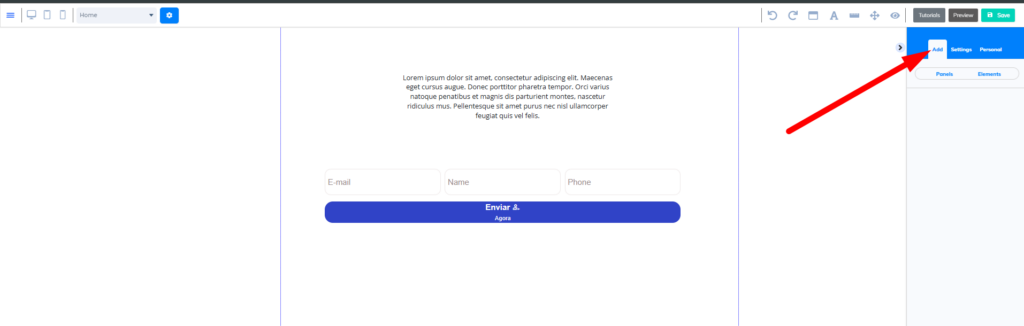
- Open Elements.
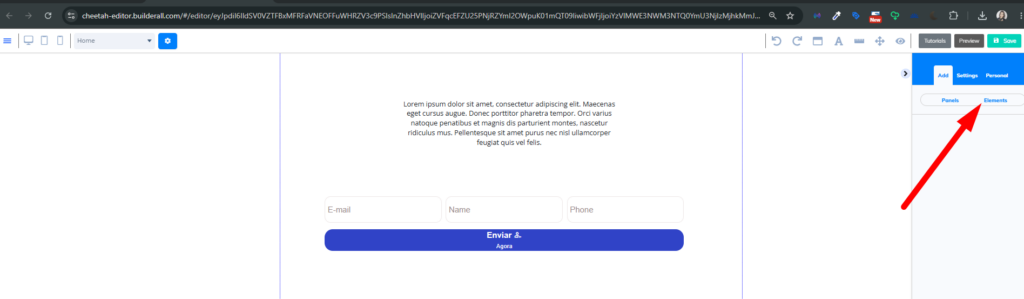
- Drag the Iframe element onto your page.
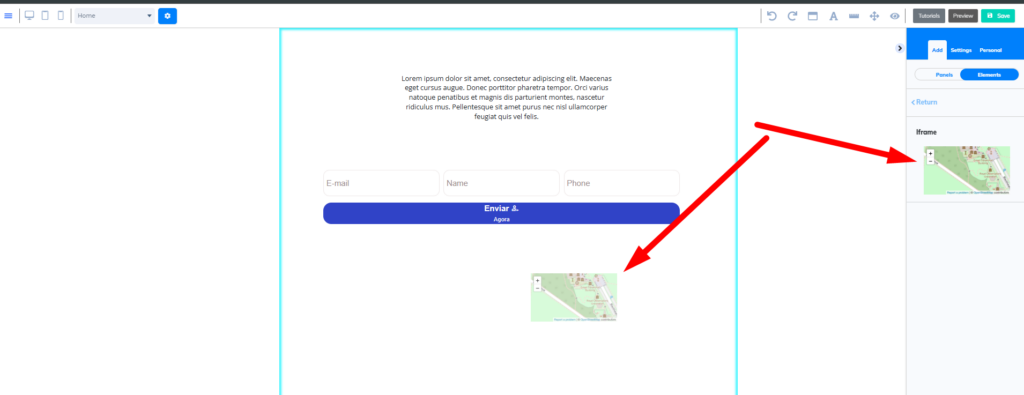
Iframe Settings
Full Width
Makes the Iframe occupy the entire available width.
Perfect for:
- maps
- videos
- dashboards
- calendars
Embed URL
Use this option when you only have a URL.
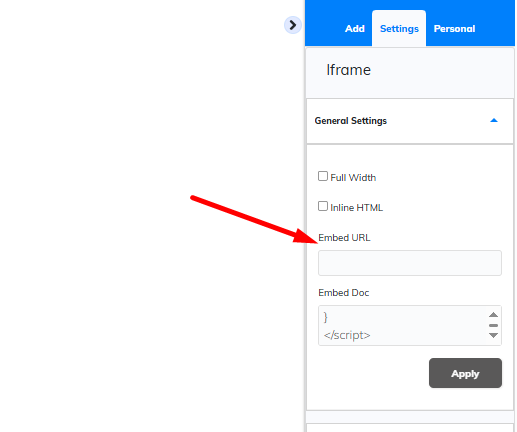
Example:
https://calendly.com/myusernameBuilder will load the content inside the Iframe automatically.
Embedded HTML
Allows you to paste HTML embed code provided by a third-party service.
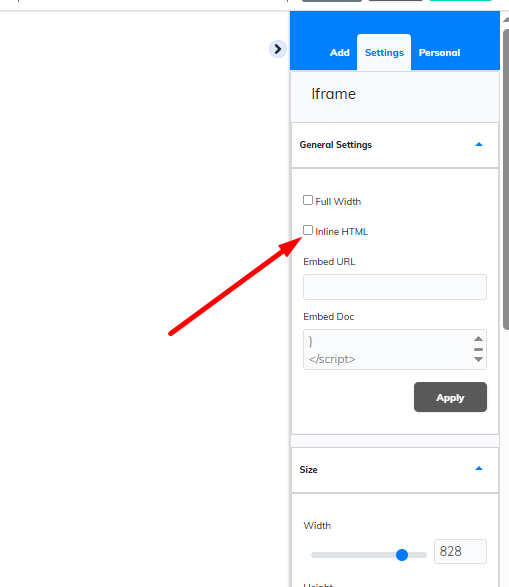
Example:
<iframe
src="https://www.youtube.com/embed/VIDEO_ID">
</iframe>
Embed Document
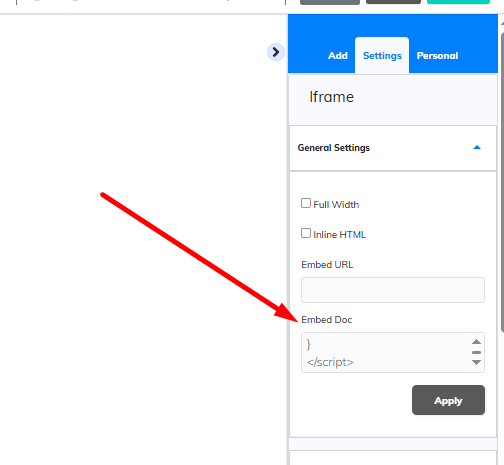
Used for displaying:
- PDFs
- Google Docs
- Presentations
- Shared files
Size
Allows you to control:
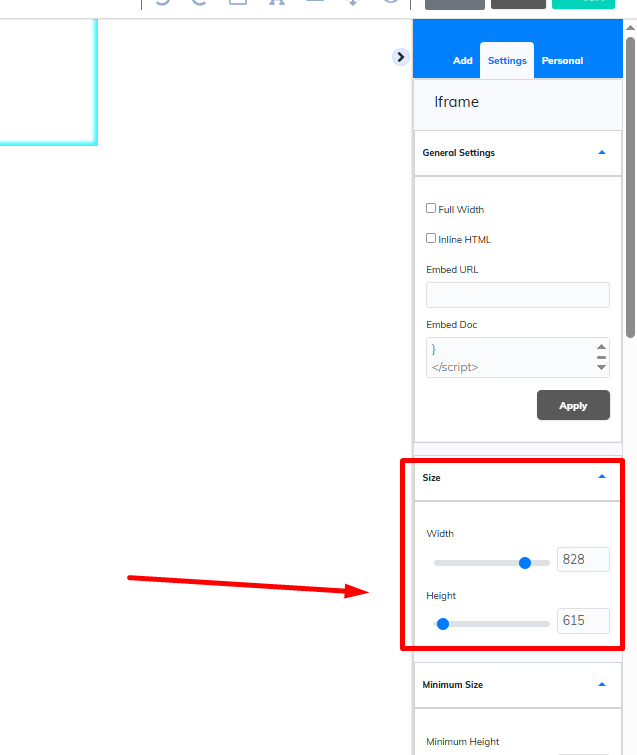
- width
- height
If content appears cut off, increase the height.
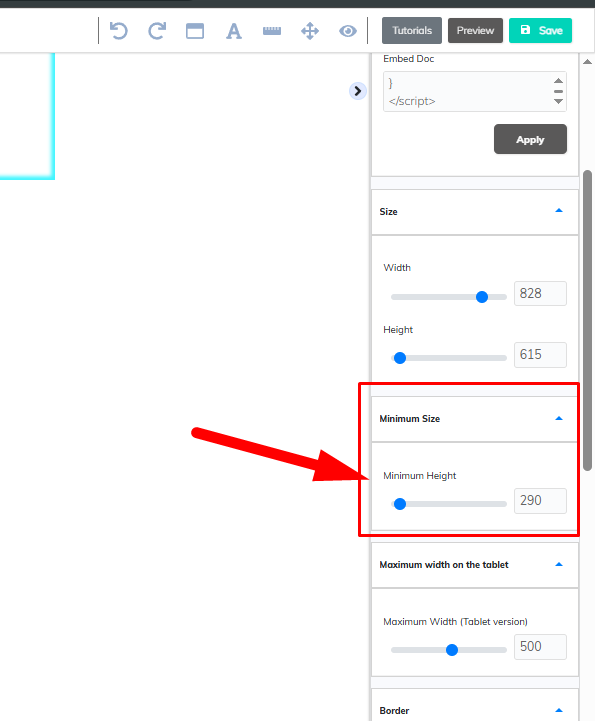
Minimum Height
Prevents content from becoming too small on mobile devices.
Border
Customize:
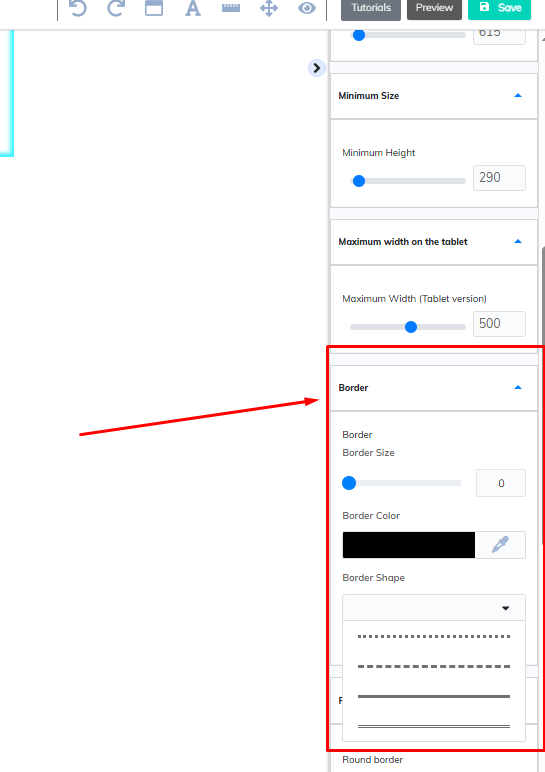
- thickness
- color
- style
Border Radius
Controls rounded corners.
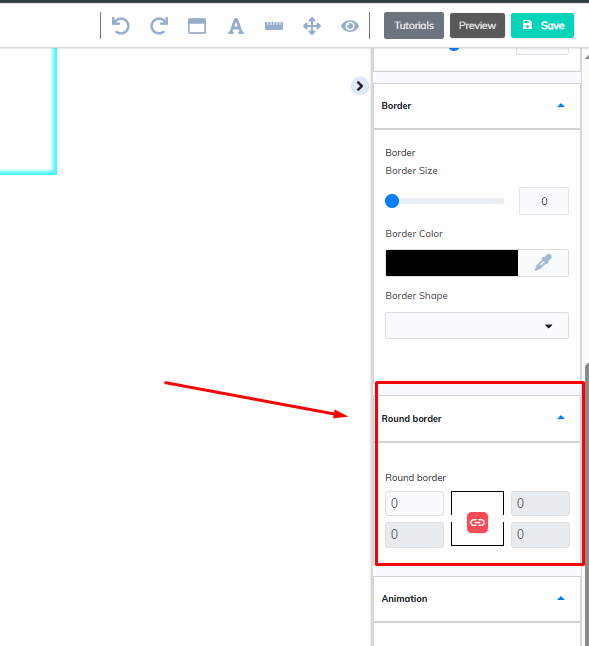
Examples:
0pxSquare corners.
15pxRounded corners.
Animations
You can apply visual effects to the Iframe.
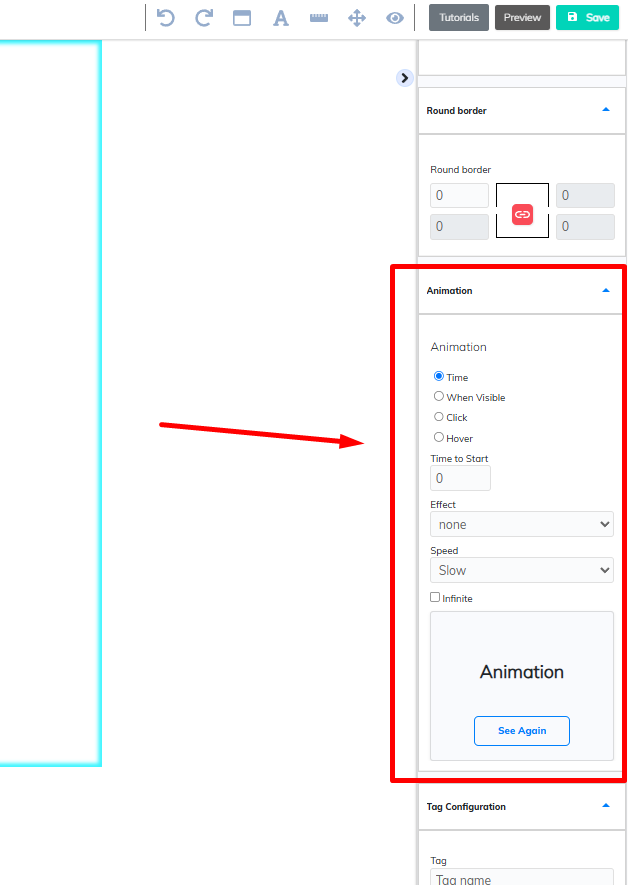
Exemplos:
- fade
- slide
- bounce
- pulse
Examples:
- fade
- slide
- bounce
- pulse
Example: Embedding a YouTube Video
In YouTube:
Share
↓
Embed
Copy the provided code.
Paste it into:
Iframe
↓
Embedded HTML
Result:
The video can be played directly on your page.
Example: Embedding Google Maps
In Google Maps:
Share
↓
Embed a Map
Copy the generated code.
Paste it into the Iframe.
Result:
A fully interactive map displayed inside your page.
What Is Inline HTML?
Inline HTML allows you to create content directly inside the page.
Unlike an Iframe, it does not load content from another website.
The content becomes part of the page itself.
When Should You Use Inline HTML?
Use Inline HTML to create:
- cards
- tables
- custom buttons
- announcement boxes
- calculators
- simulators
- widgets
- progress bars
- custom layouts
Simple Example
<h2>Welcome</h2>

<p>This content was created using Inline HTML.</p>
Example: Custom Button
<a href="https://yourdomain.com"
style="
background:#3141D3;
color:white;
padding:15px 25px;
border-radius:10px;
text-decoration:none;">
Buy Now
</a>
Example: Alert Box
<div style="
background:#FFF4CC;
padding:20px;
border-left:5px solid orange;
">

⚠️ This offer ends today.

</div>
Example: Table
<table border="1">

<tr>
<th>Plan</th>
<th>Price</th>
</tr>

<tr>
<td>Essentials</td>
<td>$116</td>
</tr>

<tr>
<td>Advanced</td>
<td>$240</td>
</tr>

</table>
Using CSS
You can apply custom styles directly within Inline HTML.
Example:
<style>

.my-box{

background:#3141D3;
color:white;
padding:20px;
border-radius:12px;

}

</style>

<div class="my-box">

Hello World

</div>
Premium Example: Pulse Animation
You can use the premium Pulse Animation example included in this guide to create visually attractive elements that work across desktop and mobile devices.
Great for:
- promotions
- call-to-action sections
- limited-time offers
- highlighted content
Building Calculators
Inline HTML can also be used to build fully functional calculators.
Basic Math Calculator
Supports:
- addition
- subtraction
- multiplication
- division
Includes:
- validation
- error handling
- responsive design
- formatted results
Use the premium “Smart Calculator” example.
Compound Interest Calculator
Perfect for:
- investments
- financial planning
- sales projections
- ROI simulations
Includes:
- automatic calculations
- principal amount
- accumulated interest
- final balance
Use the premium “Compound Interest Simulator” example.
Date Calculator
Perfect for:
- due dates
- contracts
- deadlines
- project timelines
Allows users to:
- select a date
- add a number of days
- automatically calculate a new date
Use the premium “Date Calculator” example.
What Are Custom Scripts?
Custom Scripts allow code to run across the entire page.
You can find them here:
Page Settings
↓
Scripts
When Should You Use Custom Scripts?
Use them for:
- Google Analytics
- Google Tag Manager
- Meta Pixel
- Hotjar
- Microsoft Clarity
- Tawk.to
- JivoChat
- Crisp
- Intercom
- external APIs
- advanced automations
Example: Meta Pixel
<script>

fbq('track','Lead');

</script>
Correct location:
Page Settings
↓
Scripts
Example: Google Analytics
<script async
src="https://www.googletagmanager.com/...">
</script>
Correct location:
Page Settings
↓
Scripts
Example: Live Chat Widgets
Platforms such as:
- Tawk.to
- JivoChat
- Crisp
- Intercom
usually provide a script.
That script should be added to Custom Scripts.
The Real Power: Iframe + Inline HTML + Custom Scripts
When used together, these tools allow you to build:
Beginner Level
- videos
- maps
- PDFs
- forms
Intermediate Level
- calendars
- dashboards
- tables
- widgets
Advanced Level
- calculators
- simulators
- quizzes
- interactive dashboards
- HTML applications
- API integrations
- SaaS tools
- personalized user experiences
Important Limitations
Not every website allows embedding inside an Iframe.
Some services block embedding for security reasons.
When this happens:
✅ Builderall is working correctly
❌ The restriction comes from the external service
Troubleshooting
Content Does Not Appear
Check:
- if the URL is correct
- if the content is public
- if the website allows Iframes
- if you clicked Apply
Content Appears Cut Off
Increase:
- Height
- Minimum Height
Video Does Not Load
Always use the official embed code provided by the platform.
Map Does Not Display
Use:
Share
↓
Embed a Map
Do not simply copy the location URL.
HTML Does Not Work
Check:
- opening and closing tags
- Embedded HTML is enabled
- the code was copied completely
JavaScript Does Not Run
Make sure the code was added correctly.
Some third-party scripts require Custom Scripts instead of Inline HTML.
Live Chat Does Not Appear
Most chat widgets should be configured under:
Page Settings
↓
Scripts
Frequently Asked Questions
Can I use HTML?
Yes.
Can I use CSS?
Yes.
Can I use JavaScript?
Yes.
Can I use APIs?
Yes.
Can I create calculators?
Yes.
Can I create simulators?
Yes.
Can I embed external websites?
Yes.
Can I embed SaaS tools?
Yes, as long as the platform allows embedding.
Can I use Google Maps?
Yes.
Can I use YouTube?
Yes.
Can I use Vimeo?
Yes.
Can I use Calendly?
Yes.
Can I use Google Forms?
Yes.
Can I display PDFs?
Yes.
Can I use Meta Pixel?
Yes.
Can I use Google Analytics?
Yes.
Can I use Google Tag Manager?
Yes.
Can I use Power BI?
Yes.
Can I use Looker Studio?
Yes.
Can I create my own widgets?
Yes.
Need More Help?
If you followed all the steps in this guide and the content still isn’t working correctly, contact Technical Support through chat.
When opening a support request, include:
- your page URL
- the code being used
- the service you’re trying to embed
- the expected result
- screenshots of the issue
Providing this information helps our team diagnose and resolve the issue much faster.