How to set it up, validate it, and make sure your emails actually work
Overview
Sending email is not just about writing a message and clicking send.
There are three decisions that determine the result:
- which send type you choose
- who will receive it
- what triggers that send
When this is clear, you stop testing blindly and start having full control.
How to think about email inside the platform
Whenever something is not working, you only need to analyze 5 points:
- Send type
- List
- Filter
- Trigger or send action
If those 5 are correct, the send happens.
If it did not happen, the problem is in one of them.
First step: understand send types
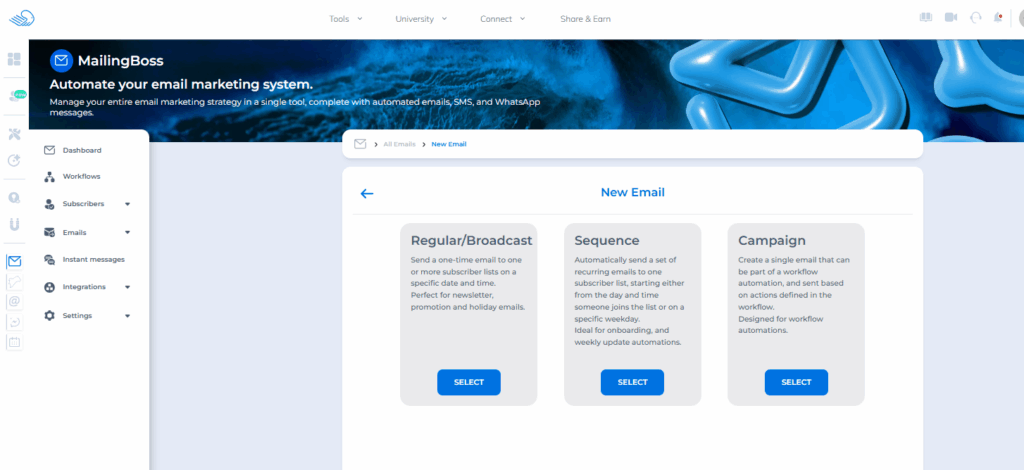
Before creating any email, you need to choose the correct type.
That completely defines how it will be triggered.
Regular or Broadcast
Direct send.
You configure it and send it immediately or schedule it.
Use it when you want to:
- send a newsletter
- communicate something to your entire list
- send one-time email blasts
Sequence
A time-based send after the lead enters the list.
Example:
- joined today
- receives an email now
- after 1 day receives another one
- after 3 days receives another one
Use it when you want:
- onboarding
- automated nurturing
- progressive relationship building
Important:
If it is active, it is already running automatically for new leads.
Campaign, Workflow Automation
This type does not send by itself.
It depends on a workflow.
Correct flow:
- Create the email
- Activate the email
- Create the workflow
- Define the trigger
- Connect the email
Without an active workflow, there is no send.
Trigger examples
- when a tag is added
- when a contact enters a list
- when a contact leaves a list
- when a contact performs an action
Other triggers:
Check all available triggers in:
Mailingboss > Workflows > Create Workflow
IMPORTANT
Without a trigger, nothing is sent.
How to choose the right email type
Want to send now
→ Use Regular
Want to send over time
→ Use Sequence
Want to automate based on behavior
→ Use Workflow Automation
How sending actually works
The system always validates:
- List
- Required rules
- Segmentation
After that:
- Regular sends immediately
- Sequence sends based on the configured time
- Campaign sends based on the trigger
Correct send structure
If you validate the points below, your send is properly set up and ready to work correctly:
The sending domain is properly verified, with SPF, DKIM, and CNAME configured
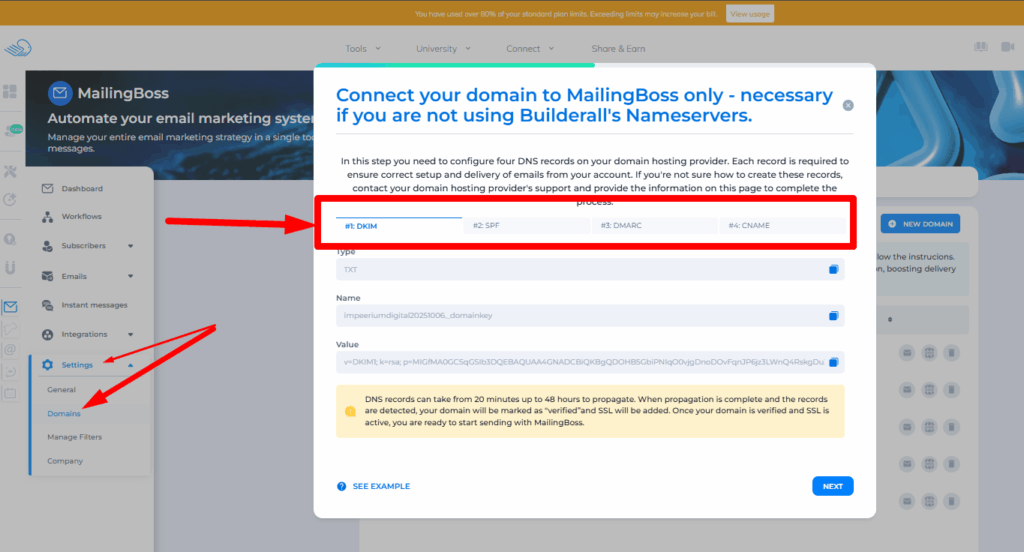
Important:
The domain must be authenticated for sending to work properly.
Without this setup:
- the email may not be sent
- the send may fail silently
- the email may go back to draft
Authentication is done through DNS records, usually including SPF, DKIM, DMARC, and CNAME.
This is a required step for sending emails.
The email has a subject line, preheader, and content in the body
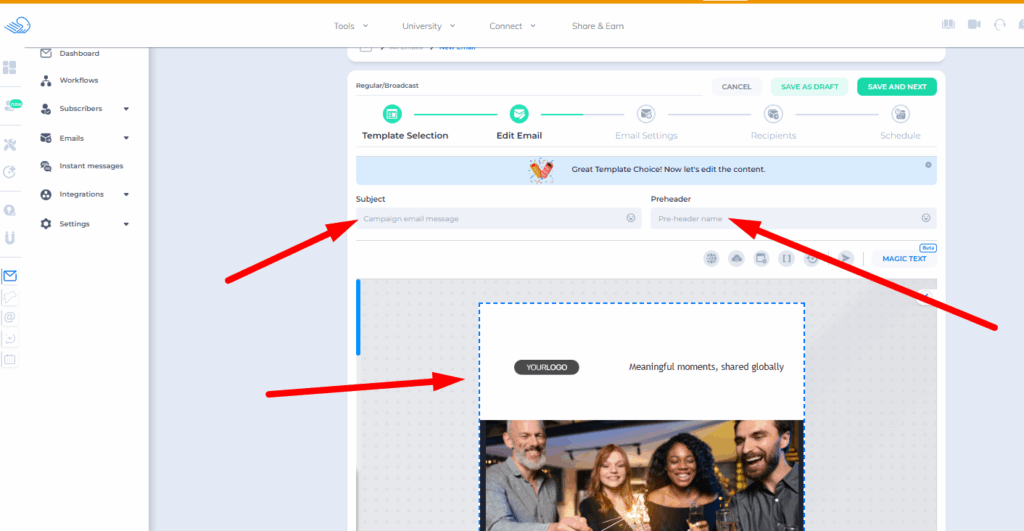
It includes an unsubscribe option with the UNSUBSCRIBE_URL tag in the footer
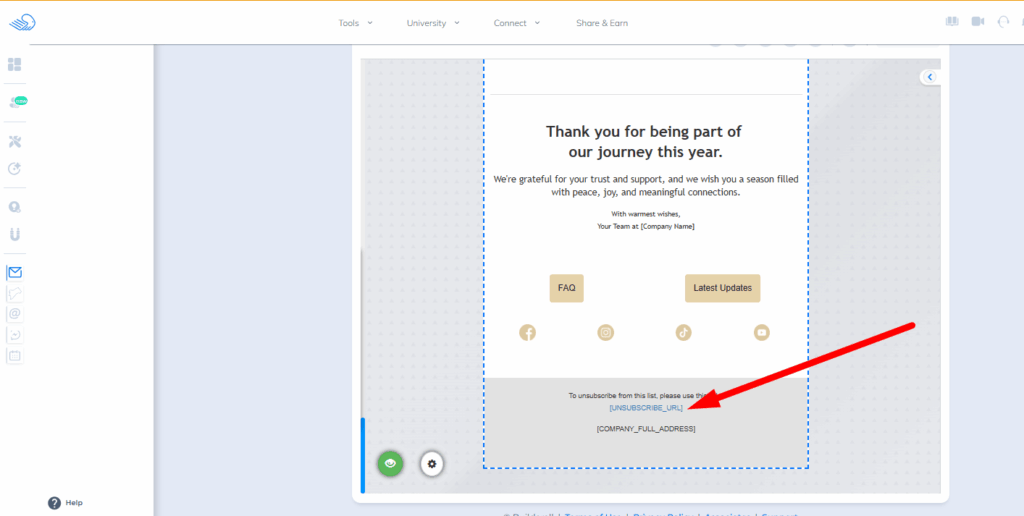
Important:
That tag is already added automatically. Just do not remove it.
Without it:
a. the email may not send
b. it may be blocked
The list is active and contains confirmed subscribers
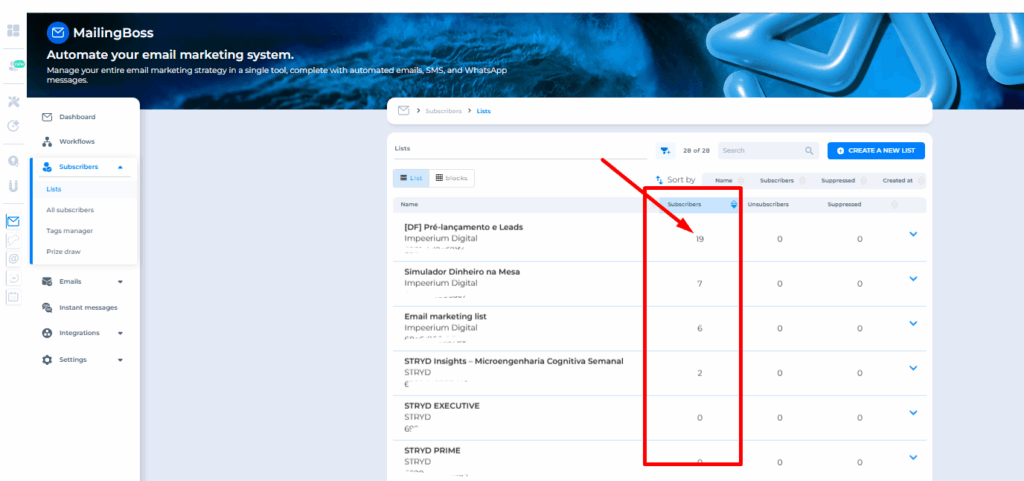
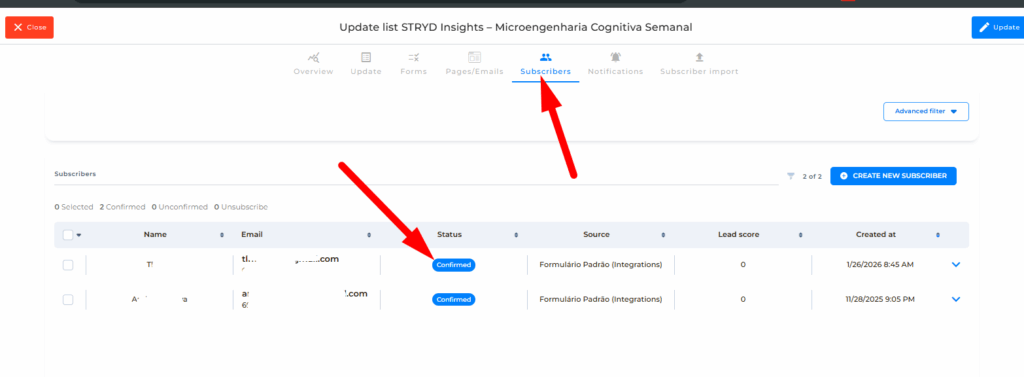
The contacts are valid, with confirmed status, and are not unsubscribed, disabled, or pending confirmation
The send type is correct, whether it is Regular, Sequence, or Workflow Campaign
You performed a test
Important about tests
Tests do not replace macros or dynamic tags.
Only real sends replace those automatically.
Test sends can only be sent to one of the registered sender email addresses.
Full step by step
1. Email creation
Check that:
- it is not in draft
- it has complete content
- it has the correct type
2. Required structure
Every email must include an unsubscribe option, that UNSUBSCRIBE_URL tag in the footer. It is already automatic, just do not remove it.
Without it:
a. it may not send
b. it may be blocked
3. Contact list
Check whether:
- contacts exist
- the email addresses are valid
- the list is active
- subscribers are marked as Confirmed
A correct campaign using the wrong list will not generate results.
4. Segmentation and filters
Filters define who receives the email.
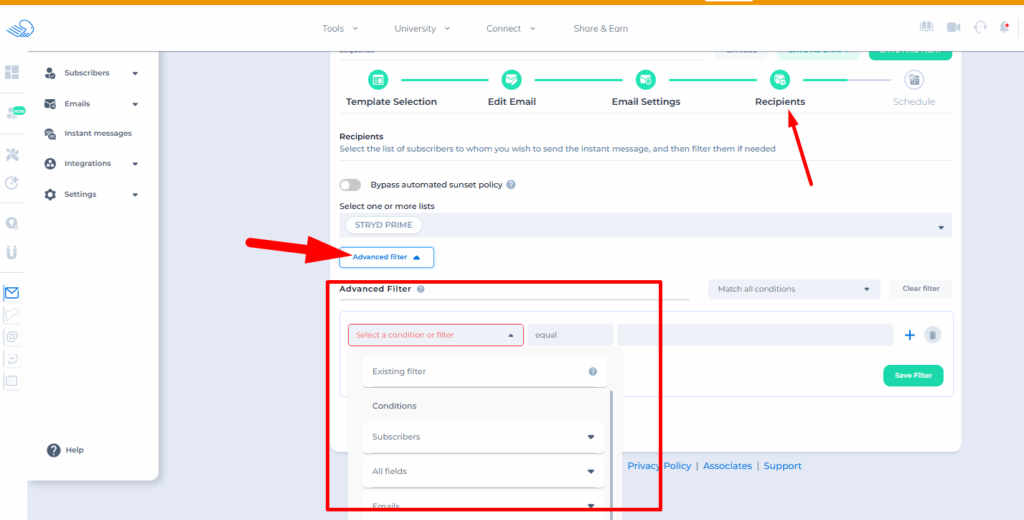
If they are too restrictive:
- no contacts will be eligible
- the send happens with no recipients
5. Sending trigger
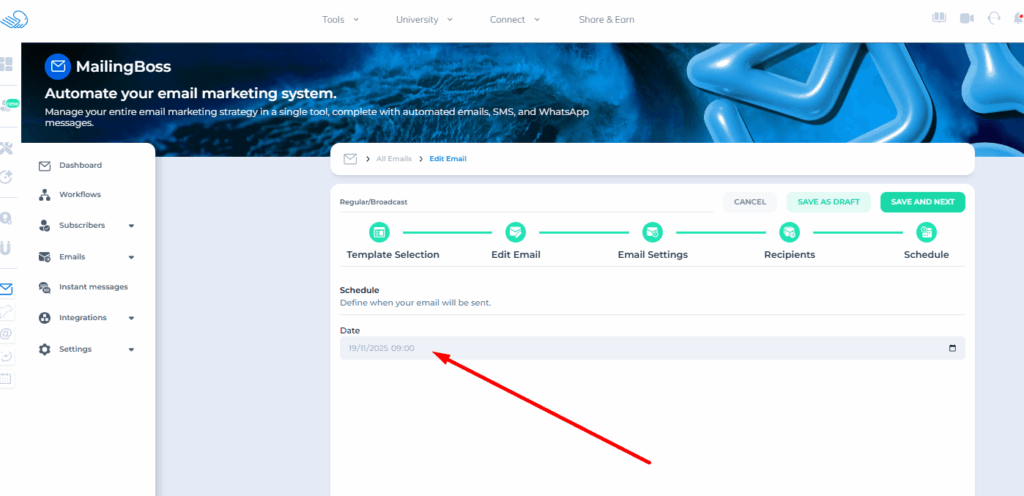
Regular
The send is manual and happens when you save the campaign.
Sequence
Automatic send based on the time you define.
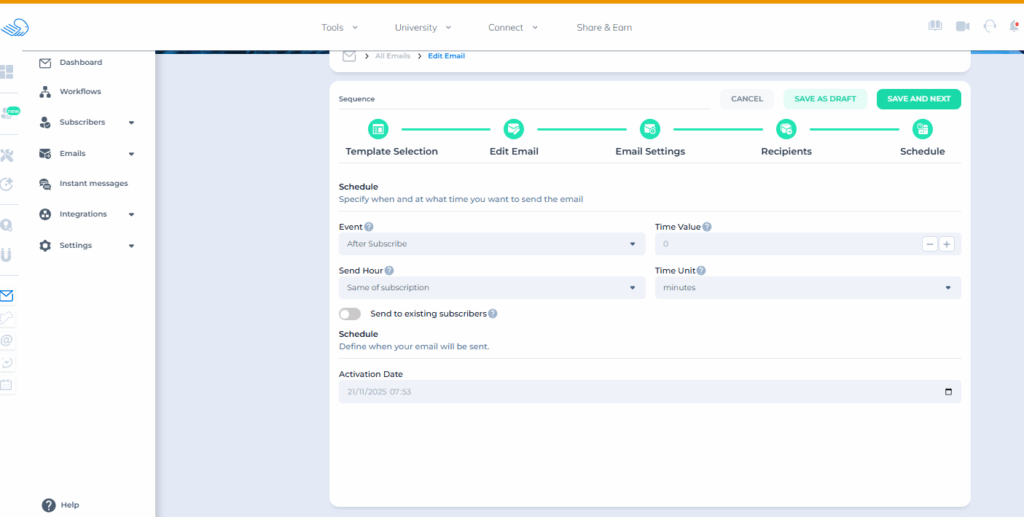
It works like this:
You define a time rule, for example, send 10 minutes after subscription to the list.
From the moment you save and activate the sequence, it starts running automatically.
The behavior is:
For new leads
Each lead receives the email based on the time counted from when they entered the list.
For leads already in the list
The system applies the rule to everyone.
If they are already past the defined time, the send may happen at the same time for all of them.
Simple example:
If the rule is to send after 10 minutes and all leads have already been in the list for more than 10 minutes, the system understands that they all already meet the condition and sends to all of them.
Campaign
You create the campaign and leave it active. After that, you create the sending rule through the workflow.
Without a workflow, there is no send.
6. After the send
It may:
- go to spam
- take time
- vary depending on the email provider
That is normal.
When the email is activated and goes back to draft
This is an important behavior.
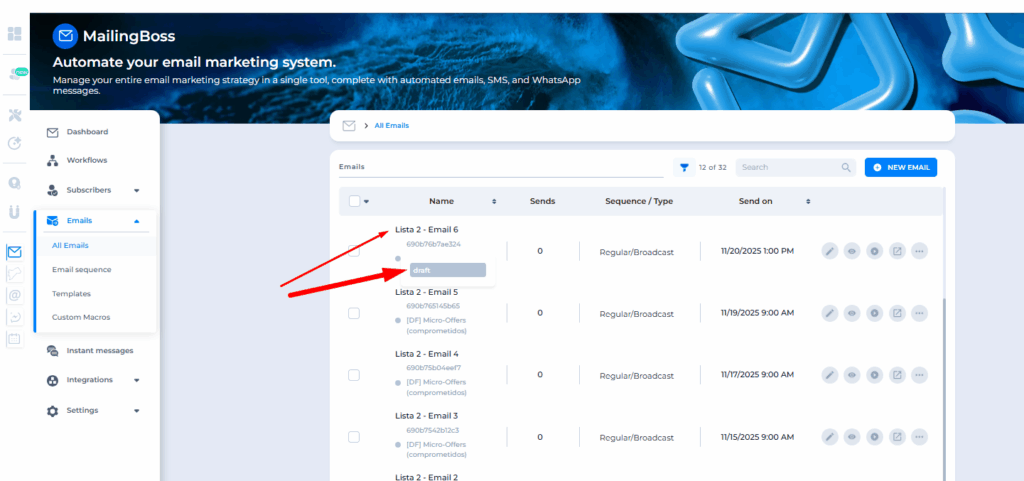
You activate it
But it goes back to draft
That means:
The system did not find valid recipients.
Most common reasons
- segmentation with no eligible contacts
- a list with no valid contacts
- filters that are too restrictive
- conflicting conditions
- unverified domain
Unverified domain
If the sending domain is not authenticated correctly, the system may prevent the send.
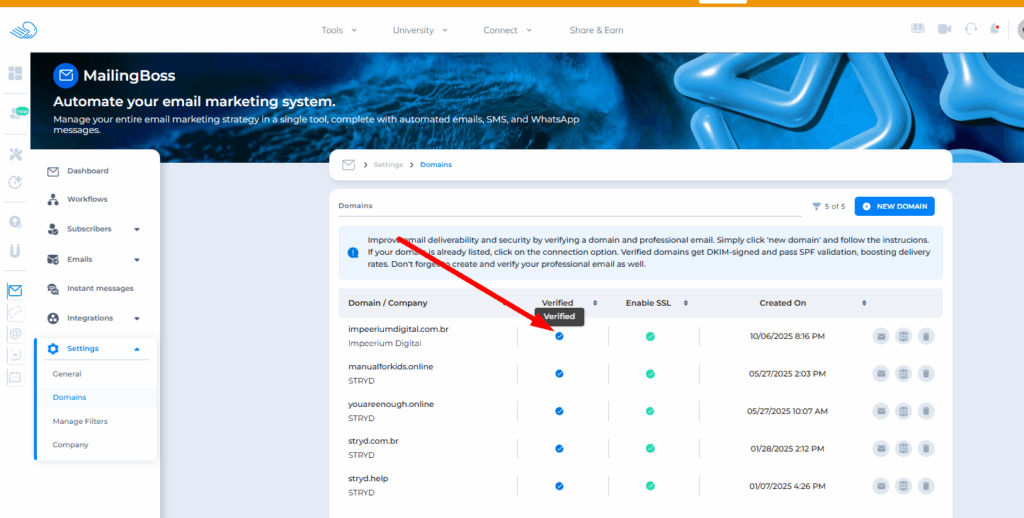
Even if:
a. the list is correct
b. the contacts are active
c. the email is properly configured
The send will not happen.
In some cases, the email may automatically go back to draft.
How to validate it
Check whether the domain is authenticated in MailingBoss.
To do that, confirm that the DNS records are correctly configured:
- SPF
- DKIM
- DMARC
- CNAME
If there is an error or those records are missing, the send may be blocked.
Additional validation steps
- remove filters
- send to the full list
- test again
If it works, the problem was segmentation.
Simple way to understand it
The system is basically saying:
I do not have anyone to send this to.
Tips and tricks
- always start simple
- test with a small list
- avoid filters at the beginning
- validate the type before sending
- for campaigns, validate the workflow
Practical rule:
If the simple version works, the problem is in the complexity.
Most common problems explained
Email does not send
Draft status or wrong type
I sent it and nobody received it
List or filter issue
Sequence does not trigger
The lead did not enter the list or the time has not been reached yet
Campaign does not work
No workflow, no trigger, or rules are too restrictive
It went back to draft
No eligible contacts
FAQ
1. Does an active email always send?
It depends on the send type you chose.
If it is a Regular email, when it is active it means it has already been sent or is in the process of being sent. This type depends on a manual action or scheduling.
If it is a Sequence email, being active means it is already running automatically. Sends happen according to the time you defined, based on when the leads entered the list.
If it is an email used in a Workflow Automation Campaign, it does not send by itself. Even if it is active, it only sends when there is a workflow configured with a valid trigger.
2. Why was my email sent, but nobody received it?
This usually happens when there are no eligible contacts at the time of the send.
The most common reasons are:
- the list does not contain confirmed contacts
- the contacts are unsubscribed or disabled
- filters or segmentations excluded all contacts
In this scenario, the system may still process the send, but it does not find valid recipients.
3. Can filters block the send?
Yes, and this is one of the most common causes.
When you apply filters, you are restricting who can receive the email. If the conditions are too specific or conflicting, it may happen that no contact matches the criteria.
In that case, the send happens with zero recipients, without any visible error.
That is why you should always validate whether there are contacts inside the filter before sending.
4. Why did my sequence not trigger?
A sequence depends on two factors:
- the lead must be in the list
- the lead must be confirmed in the list
- the configured time must have been reached
- the segment filter cannot be too restrictive
If the lead just entered and the time has not been reached yet, the send will not happen yet.
If the leads were already in the list, the system applies the rule to all of them. If all of them already meet the time condition, the send may happen at the same time.
5. Why is my Workflow Automation Campaign email not sending?
Emails used in automation do not work by themselves.
They need a workflow configured with a trigger.
If there is no active workflow, or if the trigger is never fired, the email will never be sent. If your workflow is active, check the segment filter and make sure it is not too restrictive.
6. Why does the email go back to draft by itself?
This usually happens when the system cannot find valid contacts to receive the email.
Even if everything seems correct, it may be that:
- the filters are excluding all contacts
- the list does not have valid subscribers
- the conditions are not being met
In that case, the system stops the send and returns the email to draft.
7. Why does the test work, but the real send does not?
The test is only meant to validate the email content.
It does not fully simulate a real send, because it:
- does not apply all list rules
- does not depend on segmentation
- does not replace macros automatically
Also, tests can only be sent to registered sender email addresses.
That is why a successful test does not guarantee that the real send will also work.
8. Do I always need to test before sending?
Yes.
The test helps validate:
- whether the email is being delivered
- whether the formatting looks correct
- whether there is any visible issue
But it does not replace full send validation.
The ideal approach is to combine the test with a review of the list, filters, and send type.
Practical troubleshooting
Base test
- create a Regular email
- create a list with your own email addresses
- do not use filters
- send it
If it works:
The structure is correct.
If it does not work:
There is a structural issue.
30-second quick diagnosis
If something is not working, check:
- Type
- List
- Filter
- Workflow
One of them is wrong.
Conclusion
When you understand this flow, you no longer depend on trial and error.
You know:
- where to look
- what to adjust
- why it did not work
And that is what separates a Builder user from a Builder expert.