In this guide, you will learn how to create a regular email in MailingBoss.
A regular email is a campaign sent on a specific date and time to one or more lists. It is ideal for newsletters, promotions, announcements, invitations, important updates, and one-time sends.
Unlike a sequence or an automation, a regular email does not depend on the date when the lead joined the list or on a workflow trigger. It will be sent according to the schedule you define.
What You Will Learn
In this tutorial, you will learn how to:
- Create a regular email campaign.
- Choose an email template.
- Select one or more lists.
- Set the subject line and preheader.
- Build the email content.
- Configure the sender name and reply email.
- Use advanced filters, if needed.
- Schedule the send.
- Activate the campaign.
Before You Start
Before creating a regular email, make sure you already have:
- A list created in MailingBoss.
- Contacts added or imported into that list.
- A domain configured and verified for use in MailingBoss.
- A custom sender email created and verified.
- The email content prepared, such as text, images, links, and buttons.
- The company address configured so it can appear in the required email footer.
The domain and sender email are important because they allow MailingBoss to properly authenticate your sends. This helps with deliverability and reduces issues with email providers.
If you have not configured your domain or sender email yet, follow this guide before sending campaigns:
How to Connect and Verify a Domain and Sender Email in MailinBoss
https://knowledgebase.builderall.com/docs/how-to-connect-and-verify-a-domain-and-sender-email-in-mailinboss/
Types of Campaigns in MailingBoss
In MailingBoss, there are three main campaign types: sequence, automation, and regular campaign.
Sequence Campaign
A sequence campaign is based on the date when the lead signs up and confirms their subscription to the list.
Example: a person joins your list today and receives the first email now. Then, they receive the next emails over the following days, according to the timing configured in the sequence.
Use a sequence when you want to create an automatic journey based on when the lead enters the list.
Automation Campaign
An automation campaign depends on a trigger configured in a workflow.
Example: when the lead clicks a link, receives a tag, fills out a form, or enters a specific step in the flow, an automatic action can happen.
Use automations when you want to create conditional actions and more personalized flows.
Regular Campaign
A regular campaign is sent on a specific date and time.
Example: you schedule a newsletter for Friday at 10:00 AM, and MailingBoss sends that message to the selected contacts at that time.
Use a regular email when you want to send a one-time message to your list.
When to Use a Regular Email
Use a regular campaign to send:
- Weekly or monthly newsletters.
- Promotions with a specific date.
- Important announcements.
- Invitations to events, classes, or webinars.
- Customer communications.
- Product updates.
- Seasonal campaigns.
- Launches.
- Educational content.
If the email needs to be sent on a specific date, a regular email is the right option.
Step-by-Step Guide to Create a Regular Email
1. Access MailingBoss
Log in to your Builderall account and open MailingBoss.
You can create a new email in two ways.
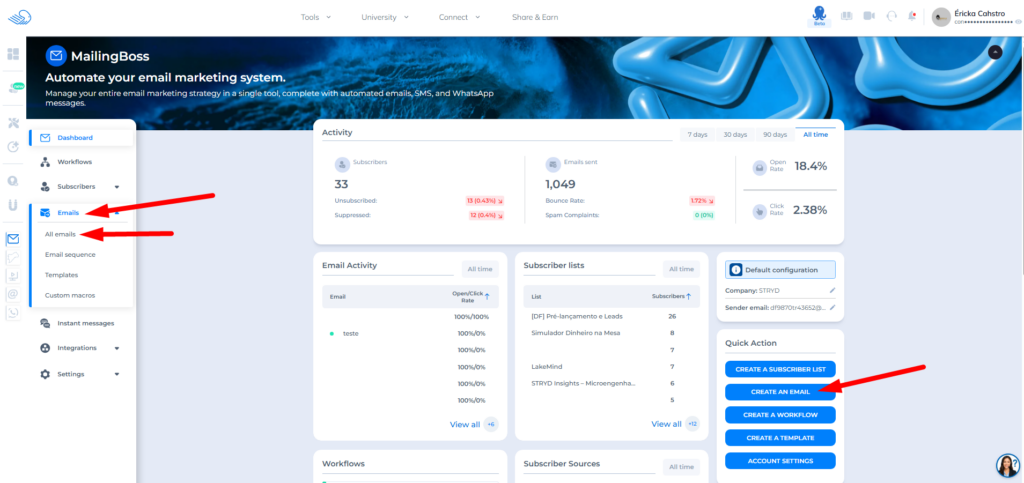
Path 1:
Builderall > MailingBoss > Right-side menu > Create an email
Path 2:
Builderall > MailingBoss > Emails > All emails > New email
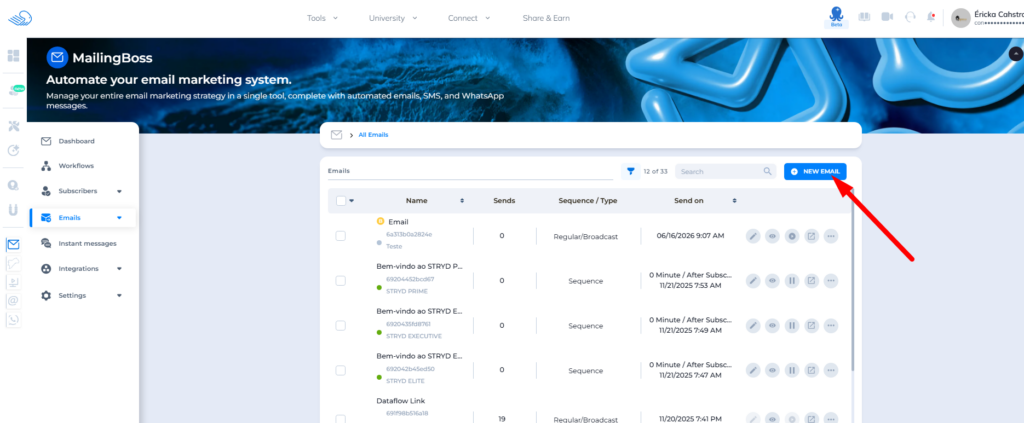
Both paths take you to the same creation flow.
2. Select the Campaign Type
On the creation screen, select:
Regular Broadcast
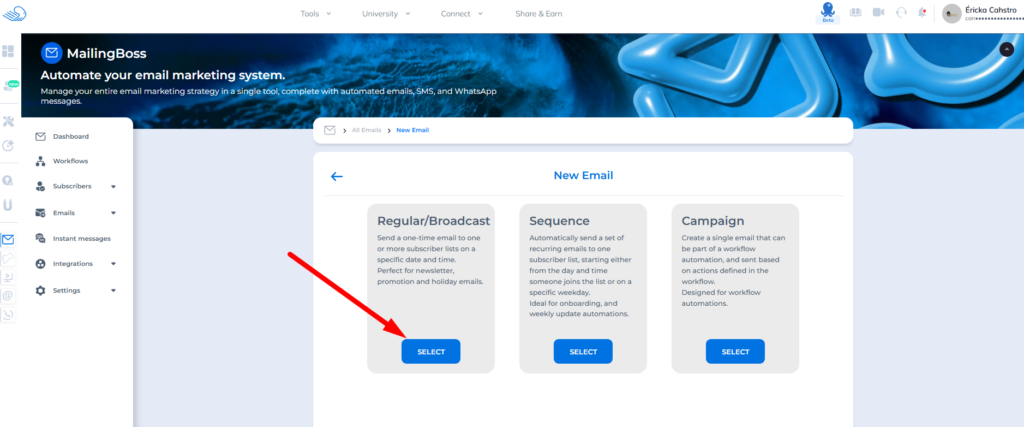
This is the campaign type used to create a regular email.
3. Choose a Template
After selecting the campaign type, choose the template you want to use.
You can:
- Use a ready-made template.
- Start with a blank template.
- Copy a template or campaign you created before.
If you want to reuse an existing structure, use the Copy Template option and select the desired model.
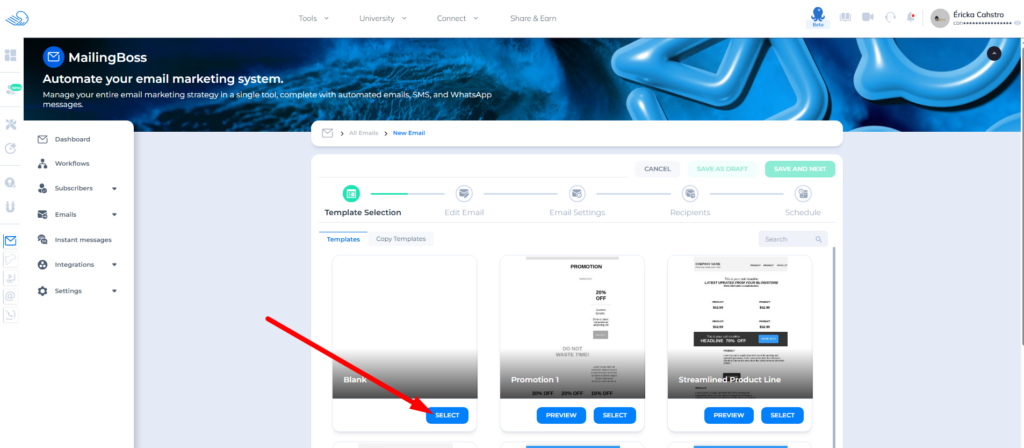
After choosing the template, click Select.
4. Choose the Contact List
Now select the list that will receive the email.
You can choose one or more lists.
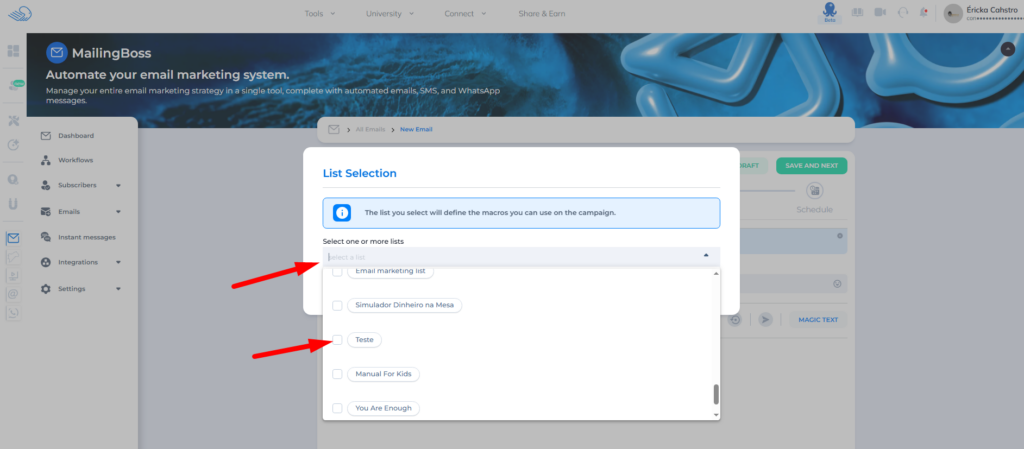
After selecting the desired lists, click Save.
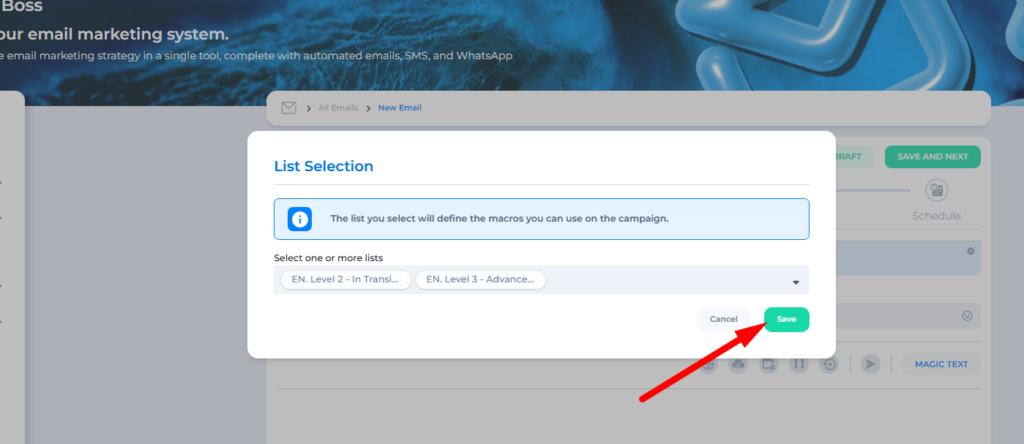
Important: if the same contact is in more than one selected list, they will receive only one email. MailingBoss prevents duplicate sends to the same subscriber within the same campaign.
5. Set the Email Subject
The subject line is the title that appears in the contact’s inbox.
It should be clear, direct, and connected to the content of the email.
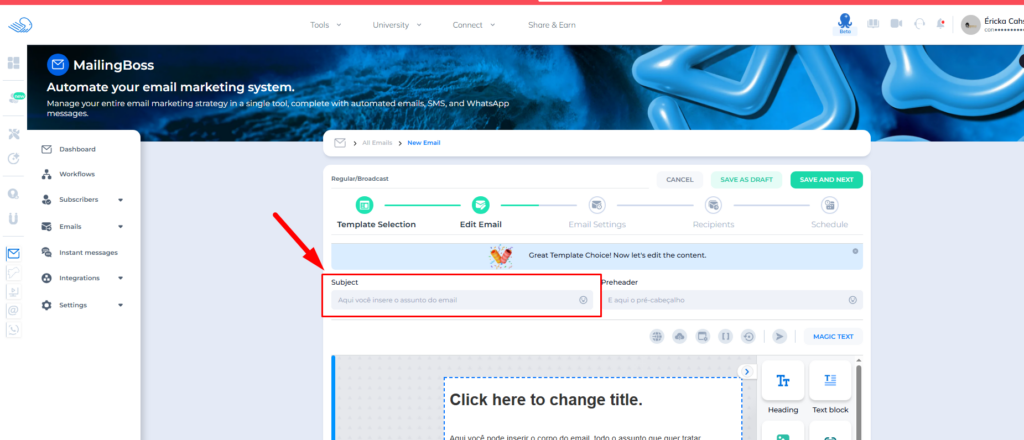
Examples of good subject lines:
- Weekly updates to improve your campaigns
- Your live class starts tomorrow
- Special offer available until today
- See how to better organize your contact list
Avoid subject lines that are too generic, confusing, or exaggerated.
Examples to avoid:
- Open now
- Don’t miss this
- You won’t believe this
- Urgent
The subject line should help the contact understand why the email is relevant.
6. Set the Preheader
The preheader is the preview text that appears next to the subject line in many email providers.
It complements the subject line and helps the contact understand the message before opening it.
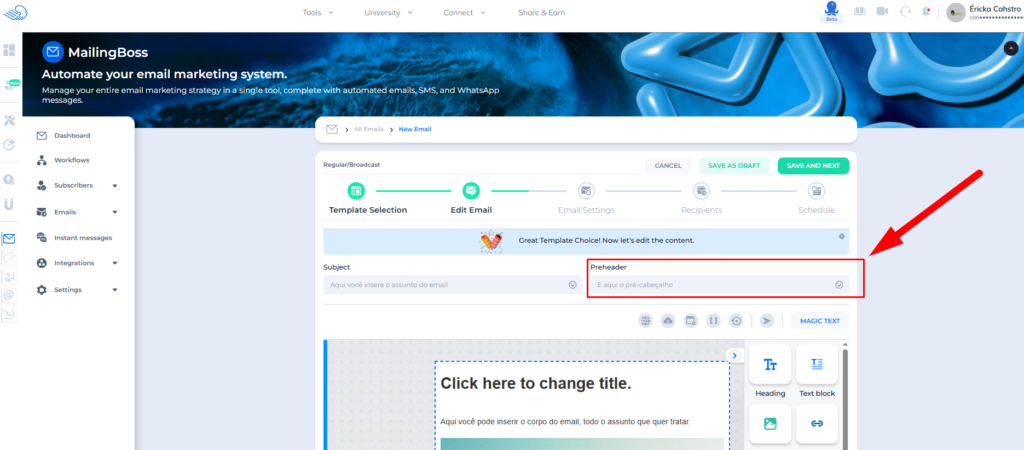
Example:
Subject: Weekly updates to improve your campaigns
Preheader: See quick tips to organize your list and improve your results.
Avoid repeating the exact same subject line in the preheader. Use this space to reinforce the main message.
7. Build the Email Content
In the email editor, you can add elements to the body of the message.
Click the arrow inside the editing area to view the available elements.
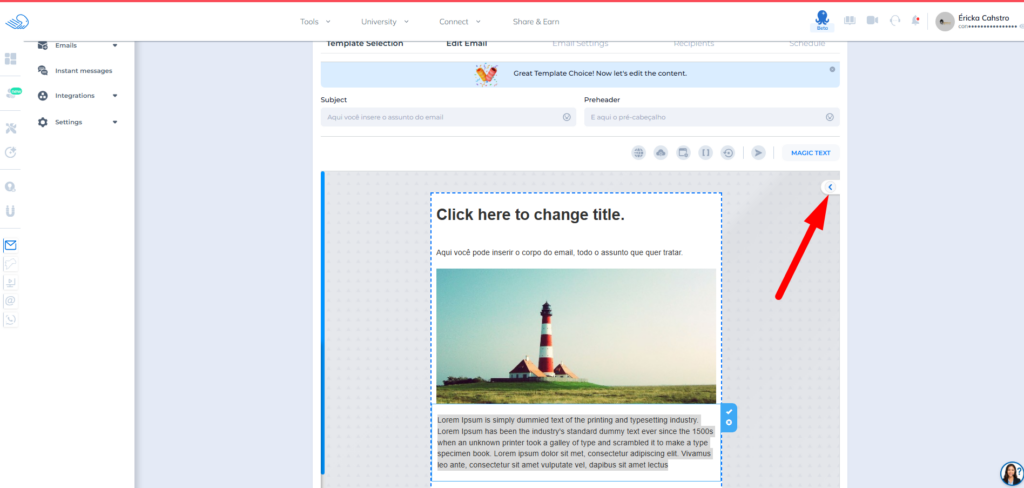
Then, click and drag the elements into the email.
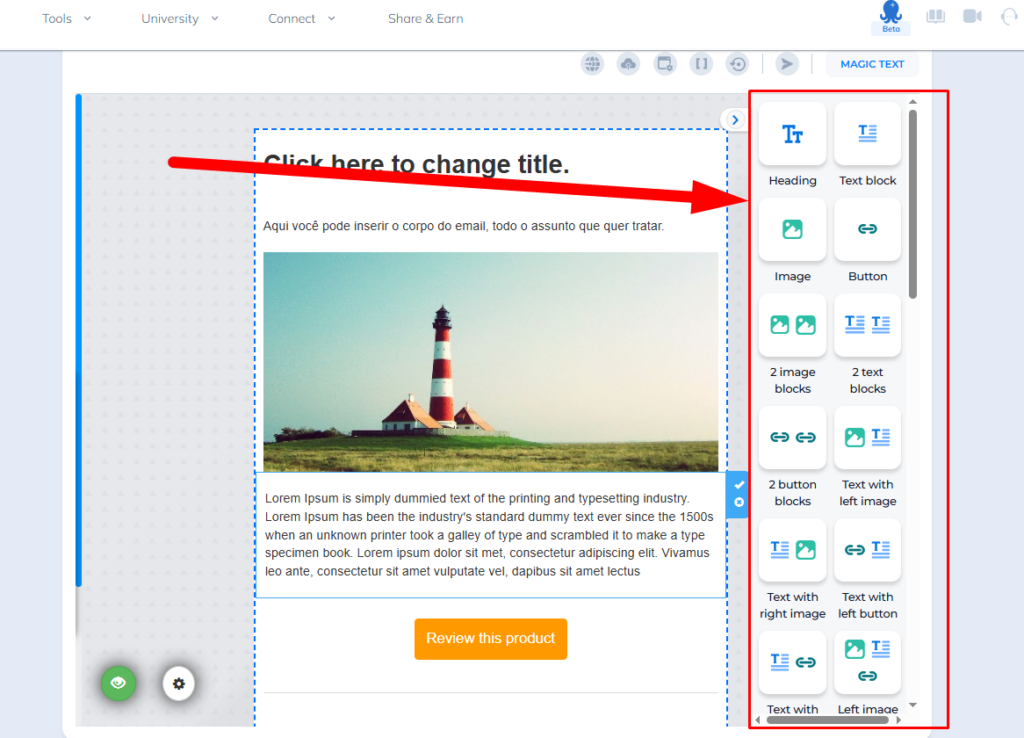
You can add elements such as:
- Heading.
- Text.
- Image.
- Button.
- Dividers.
- Other available blocks in the editor.
Build the content according to the goal of the campaign.
A simple and effective structure can follow this order:
- Main heading.
- Short text explaining the message.
- Image or visual block, if needed.
- Call to action.
- Button with a link.
- Required footer.
Example:
Heading: New class available
Text: Learn how to organize your list and improve your sends in MailingBoss.
Button: Watch now
8. Configure Links and Buttons
If the email has a button, configure the link correctly.
To add a link to a button:
- Click the button inside the editor.
- Edit the button text.
- Click the hyperlink field, usually represented by the chain icon.
- Paste the destination link.
- Save the change.
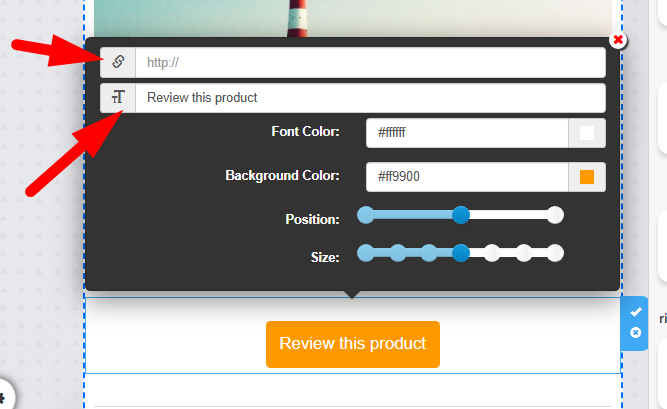
Before activating the campaign, review all links.
A button with the wrong link can affect the results of your send.
9. Do Not Remove the Required Footer
By default, the email includes a footer with required information, such as the unsubscribe link and the company address.
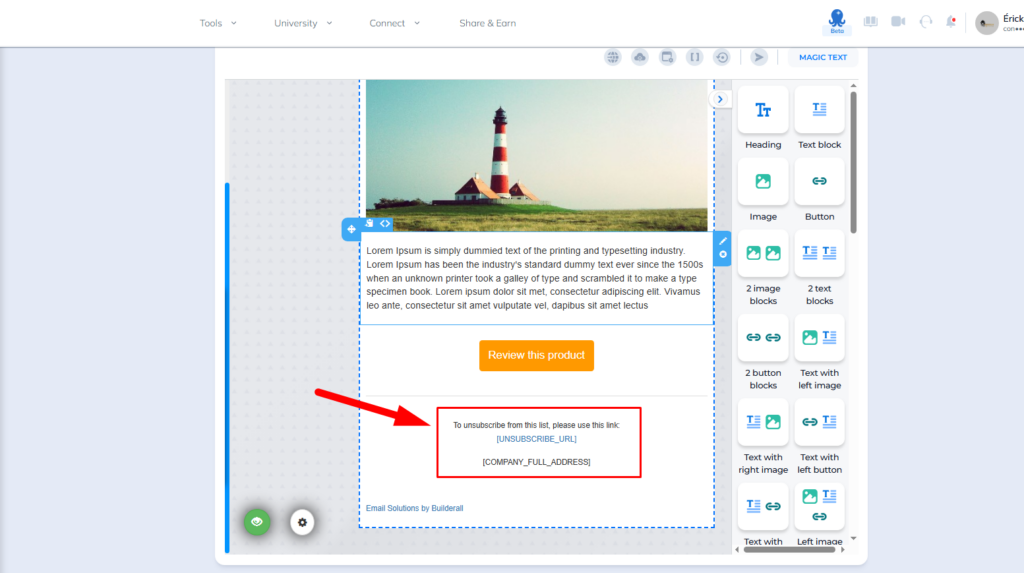
This footer may include tags such as:
- unsubscribe_url
- company_full_address
Do not remove these tags.
You can adjust the footer text, but you should not remove the unsubscribe tag or the company address tag.
This information is required for email campaign sending. If it is removed, the email may not be sent.
The unsubscribe link is also important for good email marketing practices. It allows contacts to leave the list if they no longer want to receive your messages.
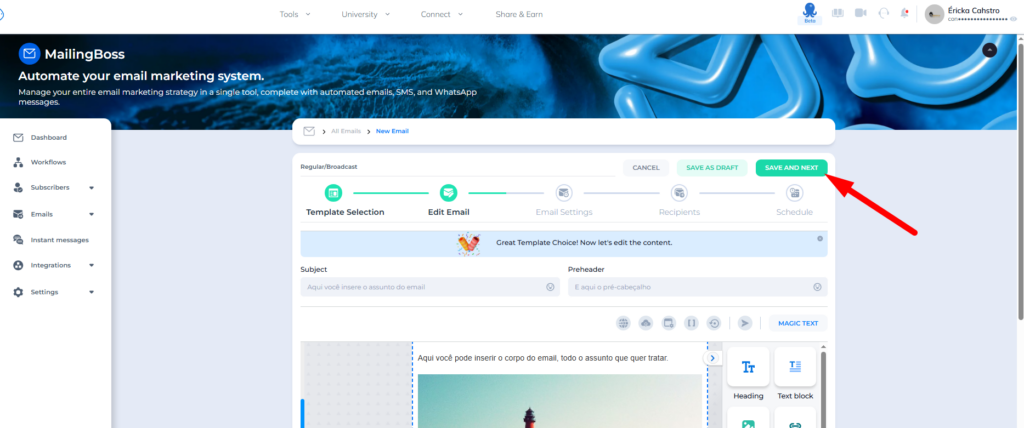
10. Save and Continue
After building and reviewing the email content, click:
Save and next
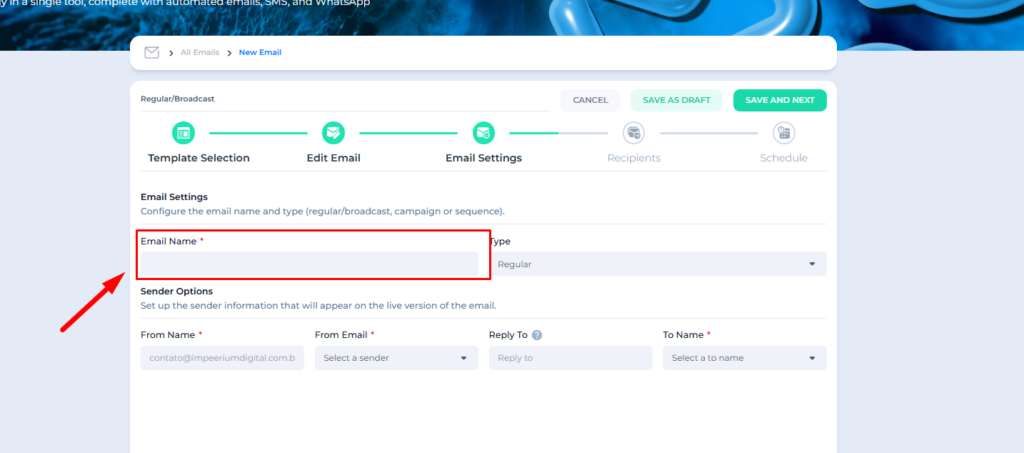
11. Configure the Internal Email Name
In the next step, enter the email name.
This name is internal and is used only for organization inside MailingBoss.
The contact will not see this name.
Examples of internal names:
- Weekly newsletter – June
- Father’s Day promotion
- Webinar invitation – Main list
- Active customer announcement
- Inactive leads reengagement
Use a name that helps you and your team identify the campaign later.
12. Confirm the Email Type
In the email type field, keep the option:
Regular
This setting indicates that the campaign will be sent as a regular email.
13. Configure the From Name
The From Name field defines the name of the person or brand sending the email.
This name appears in the contact’s inbox.
You can use:
- Your name.
- The company name.
- The project name.
- The team name.
Examples:
- Erika from Builderall
- Builderall Team
- Builderall Support
- Builderall Customer Care
- Your company name
Choose a name the contact can easily recognize.
14. Configure the From Email
The From Email field defines the sender email address for the campaign.
Select a sender email that is already registered and verified in MailingBoss.
The domain used in that email must also be configured and verified.
Example:
If you want to send campaigns using:
The domain yourcompany.com must be authorized in MailingBoss, and the email contact@yourcompany.com must exist and be verified.
MailingBoss does not create the professional email inbox. It validates the email so it can be used as the sender for your campaigns.
If you have not verified the domain and sender email yet, do this before activating campaigns.
Related guide:
How to Connect and Verify a Domain and Sender Email in MailinBoss
https://knowledgebase.builderall.com/docs/how-to-connect-and-verify-a-domain-and-sender-email-in-mailinboss/
15. Configure the Reply To
The Reply To field defines where contact replies will be sent.
When someone receives your campaign and clicks Reply, their response will go to the email entered in this field.
Use an address that you or your team actually monitor.
Example:
If you send the campaign from:
But want to receive replies at:
Then the Reply To should be:
This helps centralize replies, questions, and opportunities generated by the campaign.
16. Configure the To Name
The To Name field defines how the recipient will be identified in the send.
When available, a common option is to use the first name field, such as F Name.
This helps the email appear more personalized for each contact.
Example:
Hello, Maria
instead of:
Hello, contact
Use this field when your list has the name data filled in correctly.
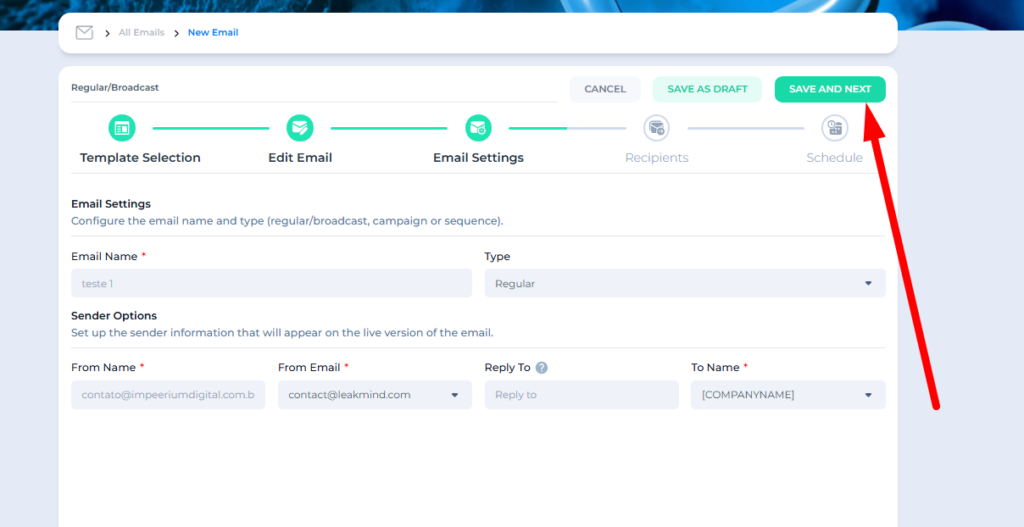
After reviewing this information, click:
Save and next
17. Confirm the Sending Lists
On the next screen, confirm which lists will receive the campaign.
Review whether the selected lists are correct.
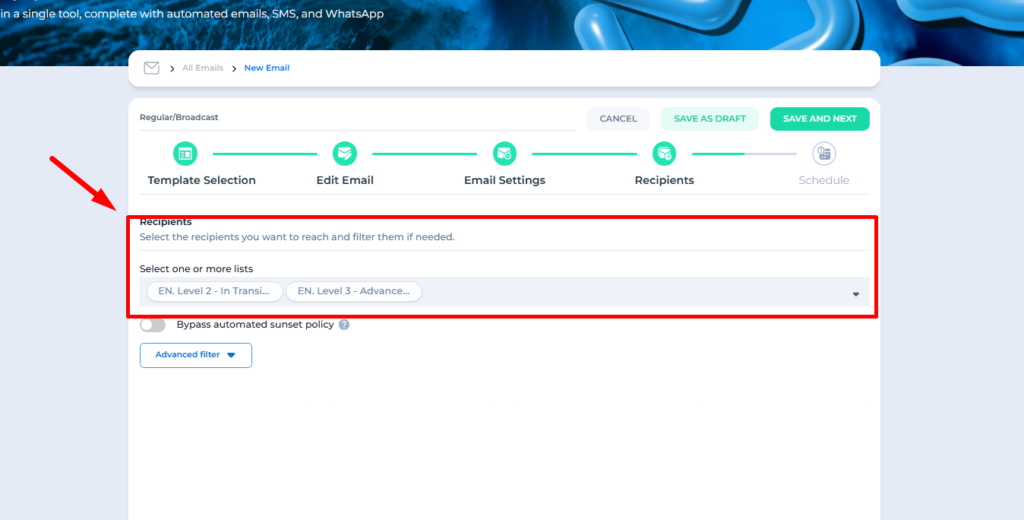
Adjust them before continuing, if needed.
This step helps prevent sending a campaign to the wrong list.
18. Understand the Sunset Policy Bypass Option
At this step, you may see the Sunset Policy bypass option.
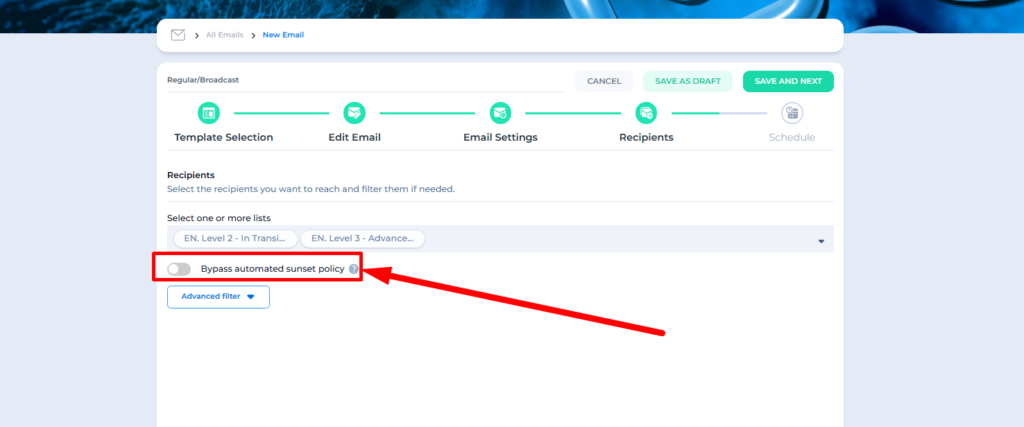
The Sunset Policy is a list protection policy. It helps prevent sending emails to contacts who have not interacted with your emails for a long time.
These contacts may become suppressed and stop receiving campaigns.
The goal is to protect your deliverability by avoiding frequent sends to people who do not open, click, or show interest.
The bypass option allows you to temporarily ignore this suppression in specific situations.
Use this option carefully.
It can be useful in reengagement campaigns when you want to try to recover inactive contacts.
If a suppressed contact opens the email, they may return to confirmed status.
Best practice: do not use bypass in every campaign. Sending frequently to inactive contacts can harm sender reputation and the results of future campaigns.
19. Configure Advanced Filters, If Needed
The Advanced Filter option allows you to segment the send.
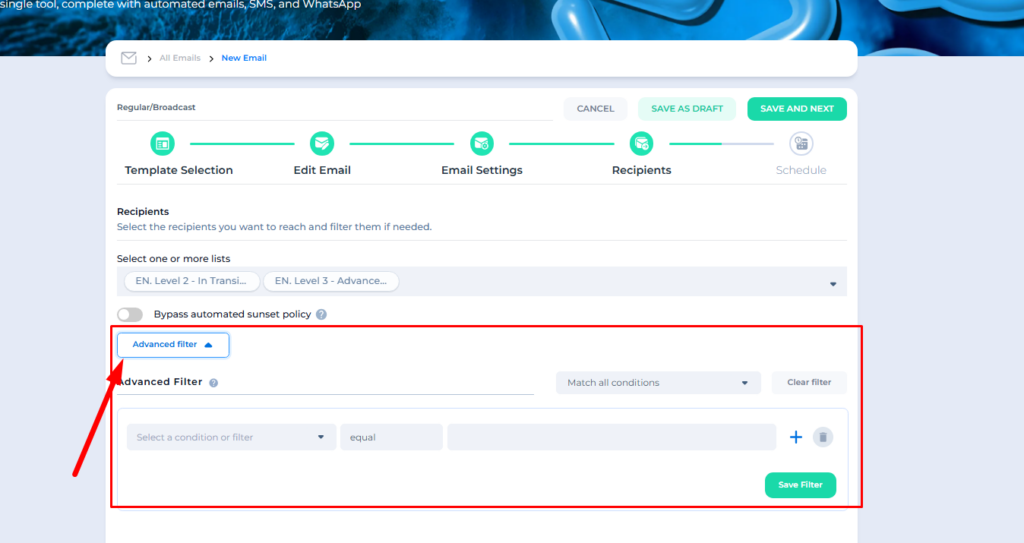
With advanced filters, you can send the campaign only to contacts who match specific rules.
Segmentation examples:
- Send only to contacts with Gmail addresses.
- Send only to contacts with a specific name.
- Send only to contacts who are also in another list.
- Send only to people who opened a previous email.
- Send only to a specific group in your database.
- Send only to contacts with a specific field value.
If you want to send the campaign to the entire selected list, you do not need to configure filters.
Use filters when you want the send to be more specific and relevant.
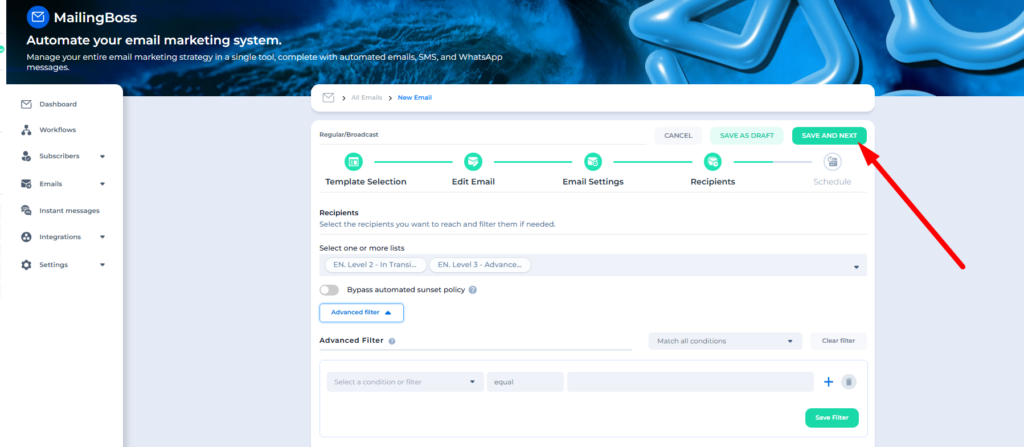
After reviewing the options, click:
Save and next
20. Schedule the Send
Now select the date and time when the email will be sent.
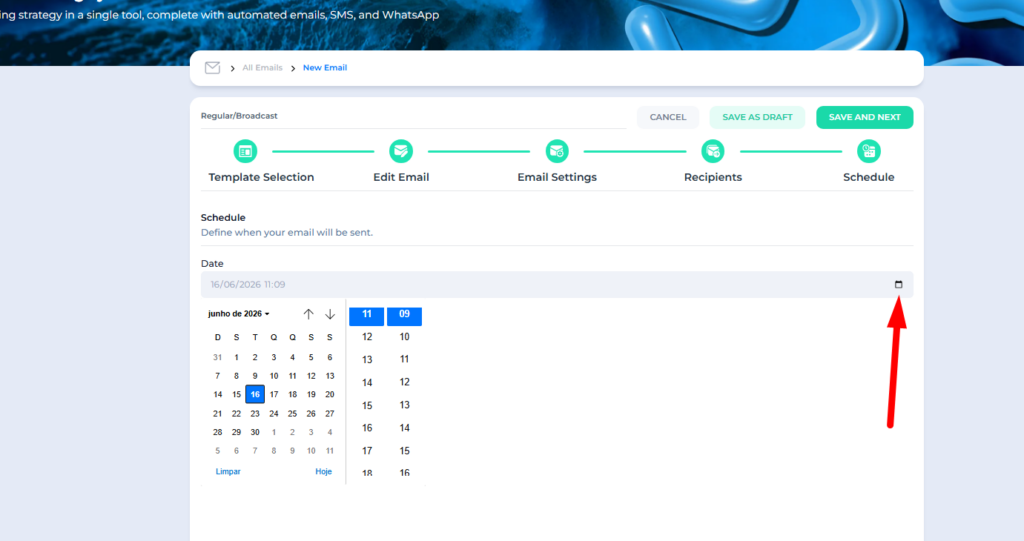
To schedule:
- Click the calendar icon.
- Choose the date.
- Choose the time.
- Confirm the schedule.
- Click Save and next.
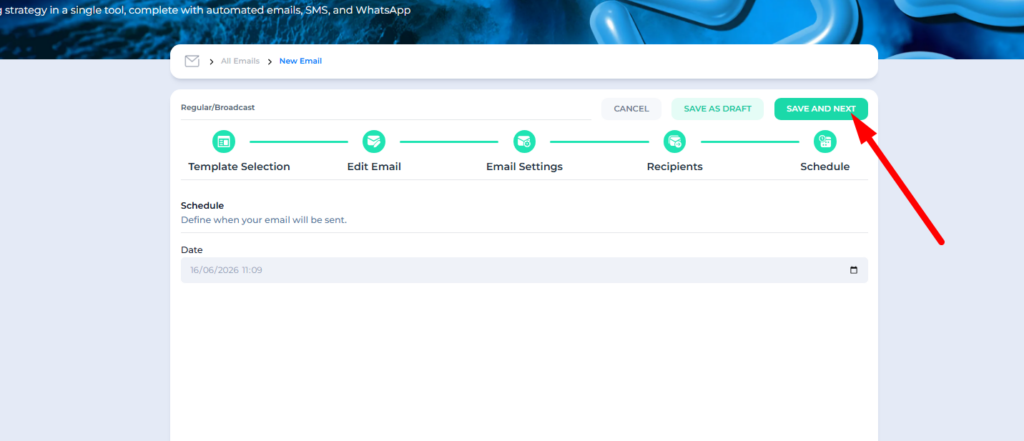
The campaign will be sent according to the selected date and time.
Before continuing, make sure the time zone is correct for the audience receiving the email.
21. Review the Campaign Before Activating
Before activating the regular email, MailingBoss will show a confirmation screen.
Review carefully:
- Send date and time.
- Sender email.
- Sender name.
- Reply email.
- Selected list or lists.
- Applied filters, if any.
- Email content.
- Links and buttons.
- Required footer.
This review helps avoid simple mistakes, such as sending to the wrong list, using the wrong link, or scheduling the campaign for the wrong time.
22. Activate the Regular Email
To finish, click:
Activate
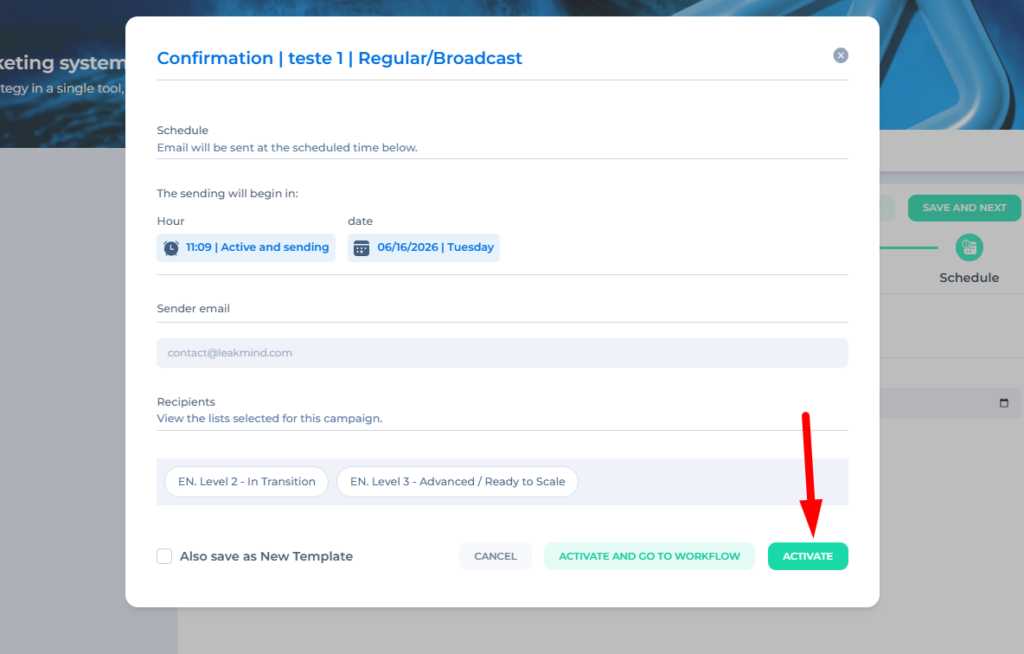
The Activate and go to workflow option is used in other contexts, especially when working with automations and workflows.
For a simple regular campaign, clicking Activate is enough.
After that, the email will be successfully scheduled.
It will appear in the email list with the sending information and available management options.
How to Manage a Regular Email After Creating It
After the campaign is created, go to:
MailingBoss > Emails > All emails
In this area, you may find options such as:
- View the email.
- Edit the campaign, when available.
- Pause the send.
- Delete.
- Make a copy.
- Check send information.
The available options may vary depending on the campaign status.
Practical Use Examples
Weekly Newsletter
Use a regular email to send news, recent content, tips, and updates to your audience.
Example:
Subject: This week’s updates are here
Preheader: See the main content and updates we prepared for you.
Button: View updates
Promotion With a Specific Date
Use a regular email to promote an offer with a defined start or end date.
Example:
Subject: Special offer available until today
Preheader: Take advantage before the campaign ends.
Button: Claim offer
Event or Webinar Invitation
Use a regular email to invite your list to a class, live session, or event.
Example:
Subject: Your live class starts tomorrow
Preheader: Confirm your spot and access the live session link.
Button: Confirm attendance
Important Announcement
Use a regular email to share changes, updates, or important information.
Example:
Subject: Important update about your account
Preheader: See what changed and what to do next.
Button: View details
Reengagement Campaign
Use this carefully to try to recover contacts who have not interacted for a while.
Example:
Subject: Do you still want to hear from us?
Preheader: Confirm your interest to keep receiving our updates.
Button: Keep me subscribed
Best Practices for Creating a Regular Email
Use a Clear Subject Line
The contact should quickly understand why they should open the email.
Choose specific subject lines that match the content.
Good example:
New class available: how to organize your list in MailingBoss
Example to avoid:
Open now
Use the Preheader as a Complement
The preheader should reinforce the subject line, not just repeat it.
Good example:
Subject: New class available today
Preheader: See how to configure your first campaign in just a few steps.
Keep the Email Focused
Emails that are too long may reduce reading and clicks.
Get to the point:
- What you are communicating.
- Why it matters.
- What the contact should do next.
Use a Clear Call to Action
The button should make the next step clear.
Examples:
- Access now
- Confirm attendance
- View updates
- Download material
- Talk to the team
- Claim offer
Avoid vague buttons, such as:
- Click here
- Learn more
- See
Review All Links
Before activating the campaign, test the main links.
Check:
- Buttons.
- Clickable images.
- Text links.
- External page links.
- Checkout links.
- Scheduling links.
- Event or live session links.
Do Not Remove the Required Footer
The footer with the unsubscribe link and company address is required.
Removing this information may prevent the campaign from being sent.
Configure the Domain and Sender Before Sending
Do not wait until the moment you activate the campaign to verify the domain or sender email.
Set this up beforehand, especially if the campaign has a deadline.
DNS record propagation may take a few hours, depending on the domain provider.
Use Segmentation When It Makes Sense
Not every campaign needs to be sent to the entire list.
A more segmented campaign can perform better when the message is relevant to a specific group.
Example:
Instead of sending an advanced offer to all contacts, you can send it only to people who have already shown interest in that topic.
Avoid Sending Too Often to Inactive Contacts
Sending many campaigns to people who do not open your emails can harm deliverability.
Use reengagement campaigns strategically and monitor the results.
Troubleshooting
The Email Is Not Being Sent
Possible causes:
- The campaign was not activated.
- The send date has not arrived yet.
- The sender email was not selected.
- The sender email was not verified.
- The domain was not verified.
- The required footer was removed.
- The unsubscribe tag was removed.
- The company address tag was removed.
- The content still has sample text.
Solution:
Review the campaign settings, confirm that the domain and sender are verified, check the required footer, and make sure the campaign was activated correctly.
I Cannot Select a Sender Email
Possible causes:
- No sender email has been registered.
- The email has not been verified yet.
- The email domain has not been verified yet.
- The sender setup is incomplete.
Solution:
Register and verify the sender email in MailingBoss. Also confirm that the domain used in that email is configured and verified.
I Cannot Send Using My Custom Email
Possible causes:
- The domain has not been verified in MailingBoss yet.
- The DNS records have not been configured yet.
- DNS propagation is not complete yet.
- The sender email has not been verified yet.
- The custom email address does not exist yet.
Solution:
Configure and verify the domain in MailingBoss, add the required DNS records in your domain provider, and validate the sender email using the code sent to the inbox. Then return to the regular campaign and select the verified sender.
Related guide:
How to Connect and Verify a Domain and Sender Email in MailinBoss
https://knowledgebase.builderall.com/docs/how-to-connect-and-verify-a-domain-and-sender-email-in-mailinboss/
The Same Contact Is in Two Lists. Will They Receive Two Emails?
No.
If the same contact is in more than one selected list in the same campaign, they will receive only one email.
The Email Button Is Not Working
Possible causes:
- The link was not added.
- The link was pasted in the wrong field.
- The link is incomplete.
- The button was edited, but the change was not saved.
Solution:
Click the button inside the editor, open the hyperlink field, enter the full link, and save. Then review the email before activating the campaign.
The System Does Not Allow Me to Send the Email
Possible causes:
- The email contains sample content.
- The required footer was removed.
- Required information is missing.
- The sender was not selected.
- The domain or sender email has not been verified yet.
Solution:
Replace all sample text with real content, check the required footer, review the campaign settings, and confirm that the domain and sender are ready to use.
Some Contacts Did Not Receive the Email
Possible causes:
- The contacts are suppressed by the Sunset Policy.
- The contacts are not in the selected list.
- An advanced filter excluded those contacts.
- The email went to spam or promotions.
- The contact has an invalid or inactive address.
- The contact is not confirmed in the list.
Solution:
Check the selected list, applied filters, and contact status. If they are inactive contacts, consider creating a specific reengagement campaign.
The Email Was Sent to Fewer People Than Expected
Possible causes:
- Duplicate contacts across lists were counted only once.
- Some contacts are suppressed.
- Some contacts are not confirmed.
- An advanced filter reduced the audience.
- The list has invalid or inactive contacts.
Solution:
Review the lists, filters, and contact status before activating the campaign.
The Email Went to Spam
Possible causes:
- The domain is not properly authenticated.
- The subject line is too aggressive or promotional.
- There are too many links or images.
- The list quality is low.
- There are too many inactive contacts.
- There is low previous engagement.
- The content looks suspicious to email providers.
Solution:
Check domain authentication, review the campaign content, avoid exaggeration in the subject line, send to engaged contacts, and keep your list clean.
FAQ
What Is a Regular Email?
A regular email is a campaign sent on a specific date and time to one or more lists.
It is ideal for newsletters, promotions, announcements, invitations, and one-time updates.
What Is the Difference Between a Regular Email, a Sequence, and an Automation?
A regular email is sent on a defined date and time.
A sequence depends on when the lead joined the list.
An automation depends on a trigger configured in a workflow.
Can I Send the Same Email to More Than One List?
Yes.
You can select more than one list while creating the campaign.
If the same contact is in more than one list, they will receive only one email.
Do I Need to Configure a Domain to Send Campaigns?
Yes. In addition to verifying the sender email, the domain used in that email should also be configured and verified in MailingBoss.
This improves email authentication and helps with deliverability.
Does the Domain Need to Be Hosted in Builderall?
No.
The domain can be hosted with another provider. What matters is that you have access to the DNS manager so you can add the records required by MailingBoss.
Does MailingBoss Create My Professional Email?
No.
The custom email must already exist before verification.
MailingBoss validates the email so it can be used as the campaign sender, but it does not create the inbox.
Can I Use Gmail, Outlook, or Yahoo as the Sender?
For professional campaigns, it is recommended to use a custom email with your own domain.
Example:
Free email addresses may create authentication limitations and affect the professional perception of your campaign.
Can I Use a Template I Created Before?
Yes.
You can use the Copy Template option to reuse an existing campaign or template.
Does the Internal Email Name Appear to the Contact?
No.
The email name is only for organization inside MailingBoss.
The contact will see the subject line, preheader, sender, and email content.
What Is From Name?
It is the name that appears as the sender of the campaign.
It can be your name, the company name, or the team name.
What Is From Email?
It is the email address used as the sender of the campaign.
It must be registered and verified in MailingBoss. The domain used in that email should also be properly configured.
What Is Reply To?
It is the email address that will receive contact replies.
If someone replies to your campaign, the reply will be sent to the address configured in this field.
What Is a Preheader?
It is the preview text that appears next to the subject line in many email providers.
It helps the contact better understand the message before opening it.
Can I Remove the Unsubscribe Link?
No.
The unsubscribe link is required.
Removing this link may prevent the campaign from being sent.
Can I Edit the Footer Text?
Yes.
You can adjust the text, but you should not remove the required unsubscribe and company address tags.
Do I Need to Use Advanced Filters in Every Campaign?
No.
Advanced filters are optional.
Use them when you want to send the campaign only to a specific part of your list.
When Should I Use the Sunset Policy Bypass?
Use it only in specific cases, such as reengagement campaigns.
It is not recommended to use bypass in every campaign, because sending to inactive contacts too often can harm deliverability.
After Activating, Can I Pause or Edit the Email?
In the email list, you will see the available options for the campaign, such as pause, copy, delete, or view.
The options may vary depending on the send status.
Can I Schedule a Campaign for the Future?
Yes.
A regular campaign allows you to choose the send date and time.
Can I Send a Campaign Immediately?
Yes, as long as the available options at the time of creation allow you to select the current time or a near time. Always review the campaign before activating it.