How to connect your website, understand what is happening, and safely fix any issue
Who this guide is for
This guide is for you if you:
- connected a domain and the site did not open
- published changes and nothing changed
- saw the site work in one place but not in another
- received errors like “domain already connected” or “DNS error”
- want to avoid breaking something that was already working
If you have ever thought, “Everything looks correct, but it still does not work,” you are in the right place.
How to use this guide
You can use it in two ways:
- Follow it from start to finish to understand the full process
- Jump directly to the situation that matches your case
If you are lost, use the checklist at the end.
Understanding the basics without overcomplicating it
Think about it this way:
- Domain = your website name
- DNS = the path that leads to it
- Server = where the website is hosted
- SSL = the security lock
- Cache = the stored memory of that path
If something is not working, the problem is usually in the path, not in the website itself.
Situation 1: I am connecting a domain right now
Correct order
This prevents almost all common errors.
Step 1. Connect the domain inside the website first
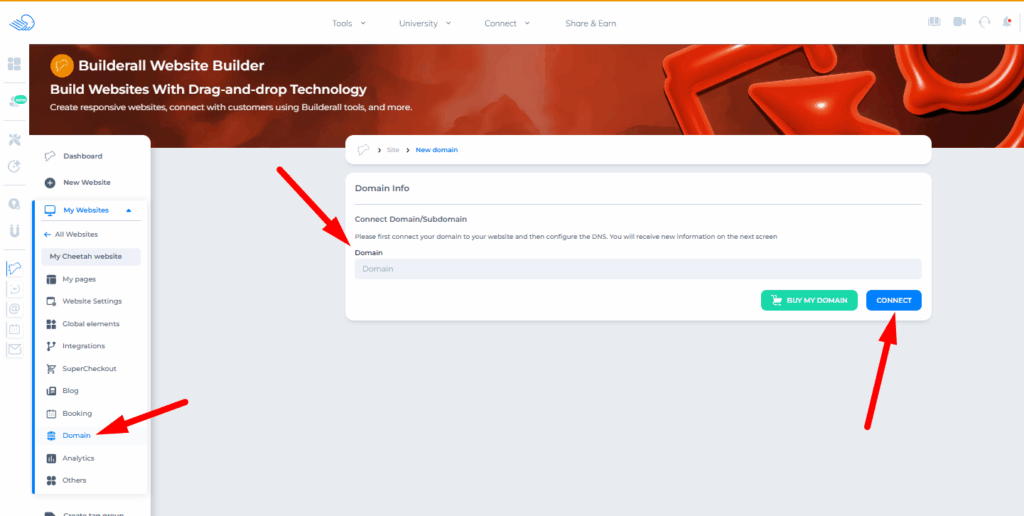
Before making any external configuration:
- go to the website inside the platform
- connect the domain there first
This prepares the system correctly.
Step 2. Are you using Registro.br?
If yes:
👉 wait about 2 hours before continuing
If you do not wait, you may get an error while configuring DNS.
Step 3. Go to the registrar where the domain was purchased
Examples:
- Registro.br
- GoDaddy
- Hostinger
- Namecheap
Now you are going to configure the DNS.
How to configure DNS correctly
First: identify which setup type you should use
You have two options:
Option 1. Individual record pointing, recommended
You only change what is necessary:
- A record, IP
- CNAME
- TXT
👉 this is the safest method
To find out exactly how to do it, you can follow the related DNS setup tutorial.
Option 2. Change the Name Servers, NS
This replaces the entire DNS configuration.
👉 this deletes all previous DNS settings
Use this carefully.
The NS values are shown when you connect your domain directly inside the platform.
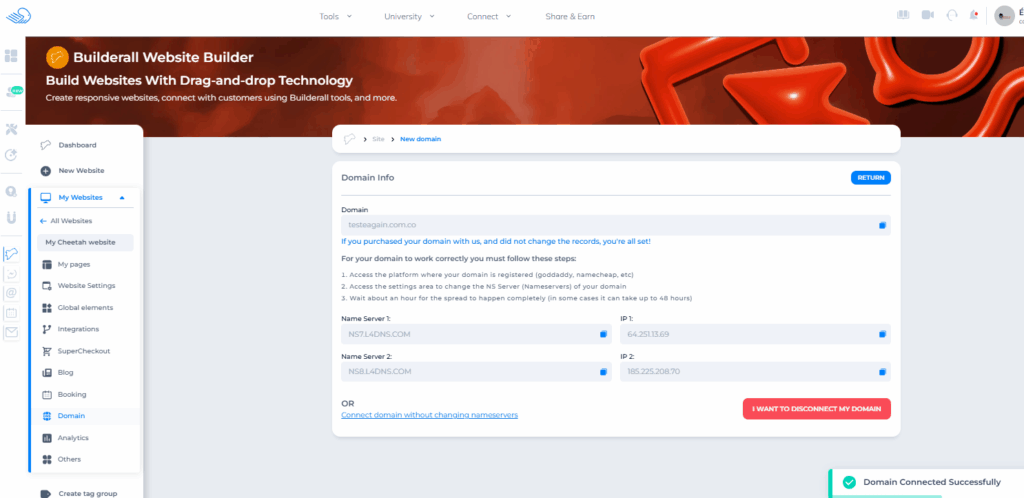
How to know if you did it correctly
After saving the changes to your Name Servers or your DNS Zone:
- the domain will begin pointing to the website
- it may take some time before it works everywhere, this is called propagation
Common mistake and how to avoid it
You change the Name Servers when you did not actually need to.
Result:
- the website works
- the email stops working
👉 because the previous DNS records were erased
Situation 2: I bought the domain inside the platform
This one is simple.
You do NOT need to:
- edit DNS
- change Name Servers
- create records
The only required step
Activate the domain through the email you received.
How to identify this problem
- the domain appears in your account
- payment was approved
- but the website will not publish
👉 the domain probably still needs to be activated
Where to look
Check your:
- inbox
- spam folder
- trash folder
Situation 3: The site does not open after configuration
Important question
Did you just finish configuring it?
👉 then it is probably still propagating
What propagation means
Propagation is the time the internet needs to recognize your domain.
During this time
- the site may not open
- it may open in one place and not in another
- it may go back and forth
Real example
You test on your phone and it works.
You test on your computer and it does not.
👉 this is normal at the beginning
Important note
.com.br domains usually take longer.
What to do
👉 wait before changing anything again
Situation 4: The site works in one place but not in another
When this section applies
- it works on your phone
- it does not work on your computer
- you see DNS_PROBE_FINISHED_NXDOMAIN
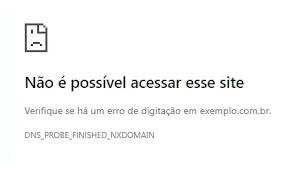
What this means
Your device could not find the path to the website.
But the website itself may still be correctly configured.
Quick test
- open it on your phone using mobile data
- open it in an incognito or private window
- ask someone else to test it
If it works somewhere else:
👉 the problem is not the website
👉 the problem is your local access
How to fix it
- clear cache
- restart your modem or router
- use public DNS
Recommended public DNS
Cloudflare
1.1.1.1
Google
8.8.8.8
Real example
You connect the domain today.
It works on your phone.
It does not work at the office.
👉 your internet provider DNS probably has not updated yet
Situation 5: I made changes and nothing updated
When to use this
- you published changes
- but you are still seeing the old version
Use these shortcuts
Sync version
https://yourdomain.com/cheetah/version
To know it worked, you should see a message like this:
saved: [number of times your website was changed] / version cached: [version number currently in cache]
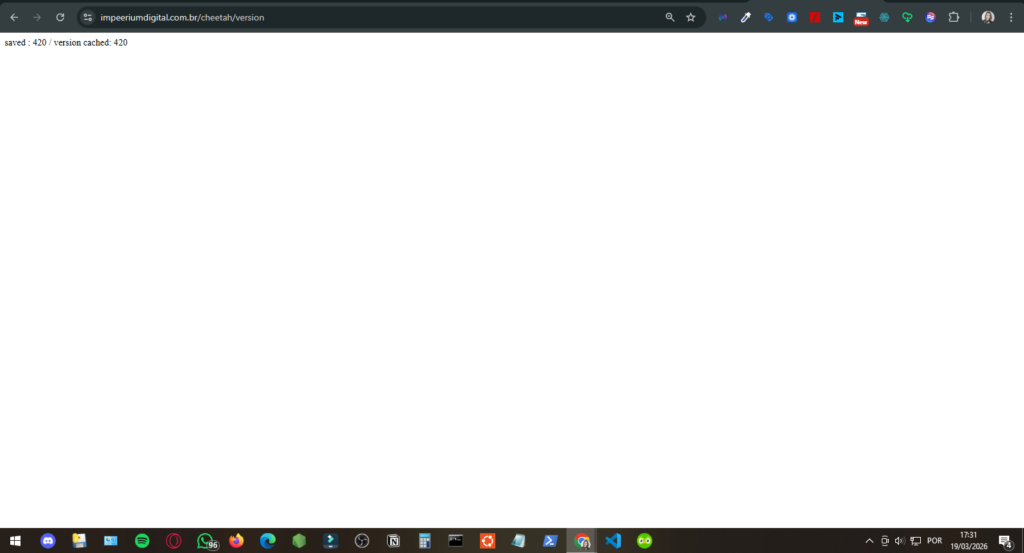
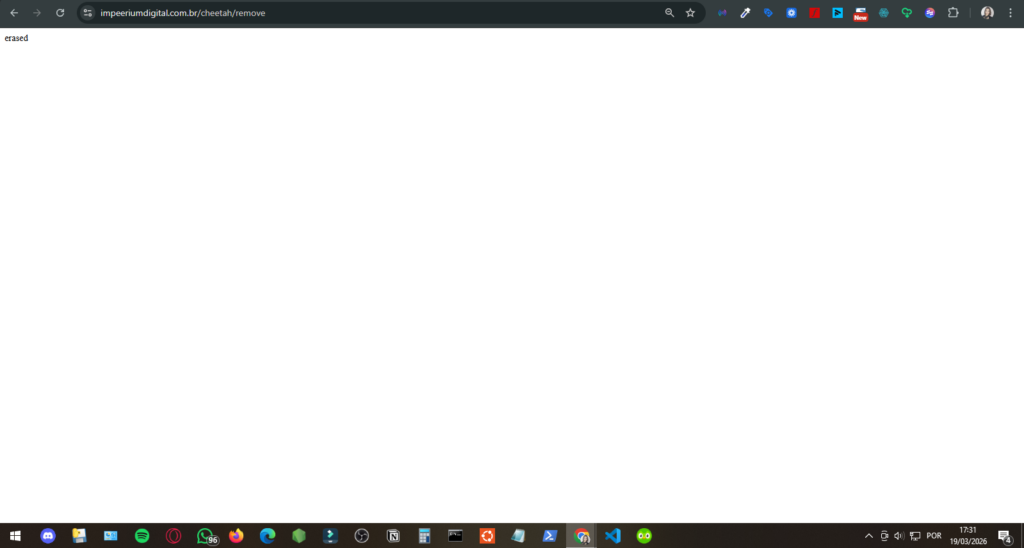
Clear cache
https://yourdomain.com/cheetah/remove
To know it worked, you should see a message like this:
erased
Very important
Use it directly after the domain only.
Correct:
https://yourdomain.com/cheetah/version
Incorrect:
https://yourdomain.com/page/contact/cheetah/version
Real example
If your site is:
Use:
https://lojadaclau.com.br/cheetah/version
Recommended order
- publish
- test
- use /version
- test again
- use /remove
Situation 6: “This domain is already connected to another website”
When you see this
While trying to connect a domain, you may see something like:
👉 “Domain already exists in website”
👉 “This domain is already connected to another website”
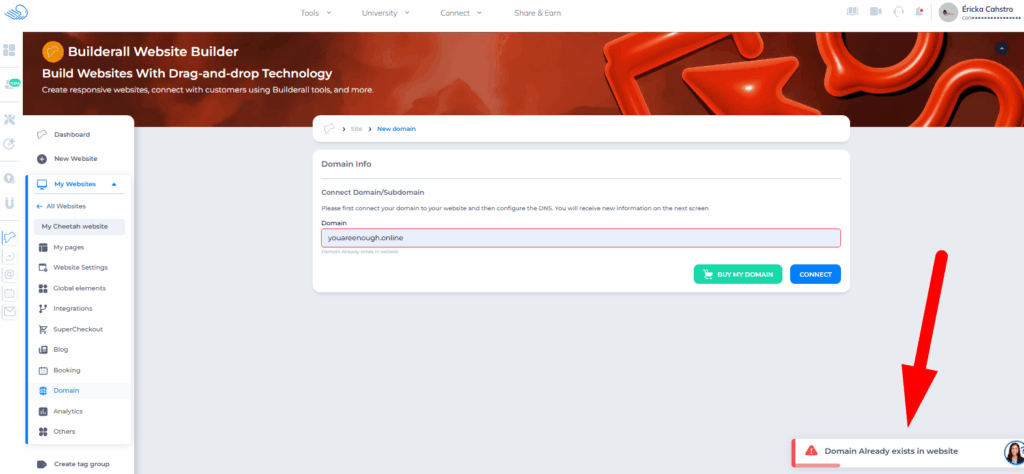
What this means in practice
That domain is already linked to:
- another website inside the platform
- or another account
The system blocks duplicates to prevent conflicts.
Real examples
Example 1
You created a new website.
You tried to connect the domain.
You got the error.
👉 the domain is still connected to the old website
Example 2
You had an old account.
You created a new one.
You tried to use the same domain.
👉 the domain is still attached to the previous account
How to fix it
Case 1: You still have access to the old website
Follow these exact steps:
- Access the old website
- Go to the domain settings
- Disconnect the domain
- Go back to the new website and connect the domain again
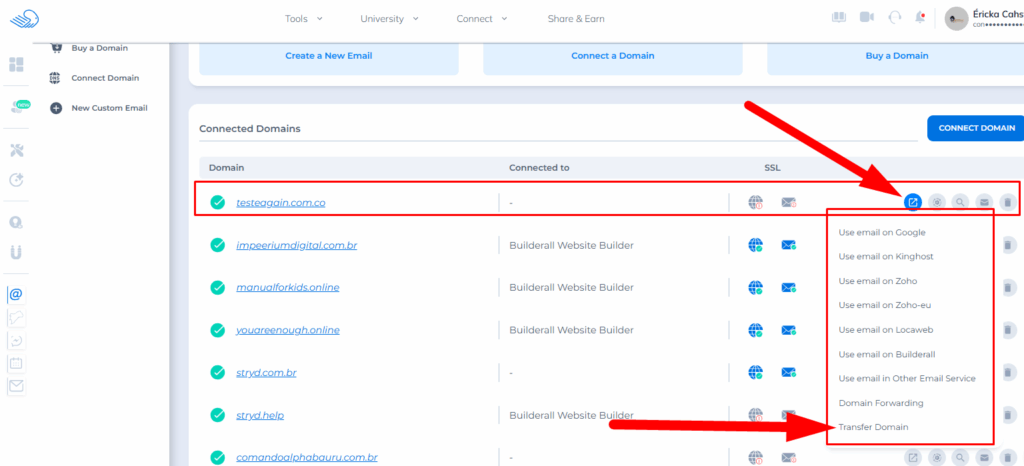
- Go to DNS Manager, and you will see your domain listed there
- Open Quick Actions, this is the first icon with an arrow pointing upward on the right side
- Select “Transfer Domain”
- Enter the destination account email
- Confirm with your password
Case 2: You no longer have access
👉 contact support and request the domain to be released
Case 3: The domain is stuck in one of your old accounts
👉 support can also resolve this
Common mistake that causes this problem
👉 deleting a website without disconnecting the domain first
This can leave the domain “stuck.”
Important tip
Before deleting any website:
👉 always disconnect the domain first
Situation 7: The SSL lock does not appear
When this happens
- the site opens normally
- but it shows as “Not Secure”
- or there is no lock icon
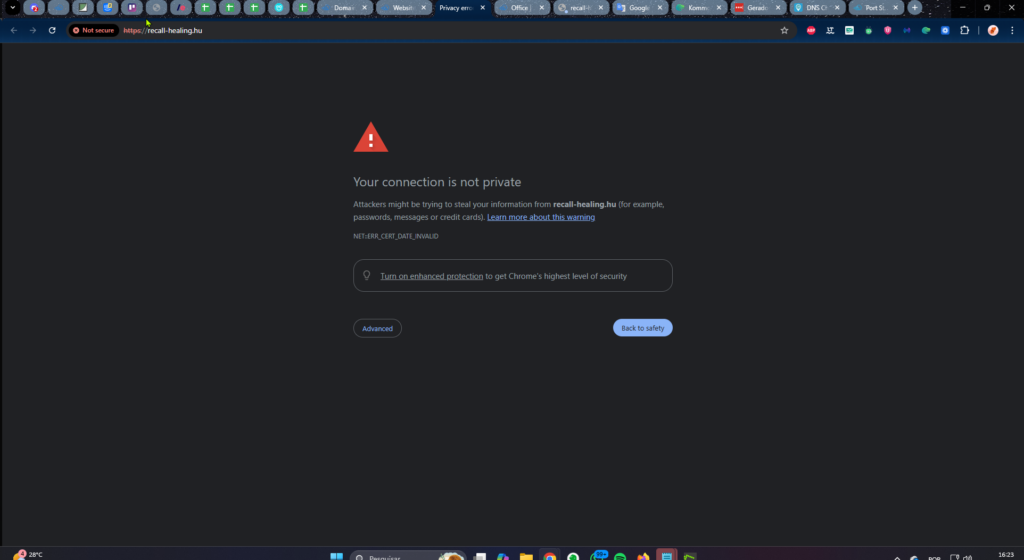
What is happening
The SSL certificate is still being generated.
This is automatic, but it takes some time.
Expected time
👉 up to about 2 hours
In most cases, it resolves on its own.
When this tip applies
Use this when:
- the site already opens
- but it does not have HTTPS yet
Real example
You connect the domain.
You open the site.
It works.
But there is no lock icon yet.
👉 this is normal at the beginning
Special case: Cloudflare
If you are using Cloudflare with the proxy enabled:
👉 SSL may not generate correctly
How to fix it
- Log in to Cloudflare
- Disable the proxy, gray cloud
- Wait for the SSL to be generated
- Enable it again afterward
When to contact support
If after 2 hours:
- the site already opens
- but it still has no SSL
👉 then it makes sense to contact support
Situation 8: The old temporary link stopped working
When this happens
Before connecting your custom domain, you were using something like:
https://7e10be56cc7bcd1be528-my-cheetah-website-3.site.builderallsite.com
After connecting your own domain:
👉 the temporary link stops working
Is this an error?
👉 No
This is expected behavior.
Real example
Before:
https://7e10be56cc7bcd1be528-my-cheetah-website-3.site.builderallsite.com/
After:
https://yourwebsite.com
👉 the first one stops working
When this question usually comes up
- the user saved the old temporary link
- tries to access it later
- thinks something “broke”
What to do
👉 always use the main domain after connecting it
Situation 9: I changed the subdomain and the links broke
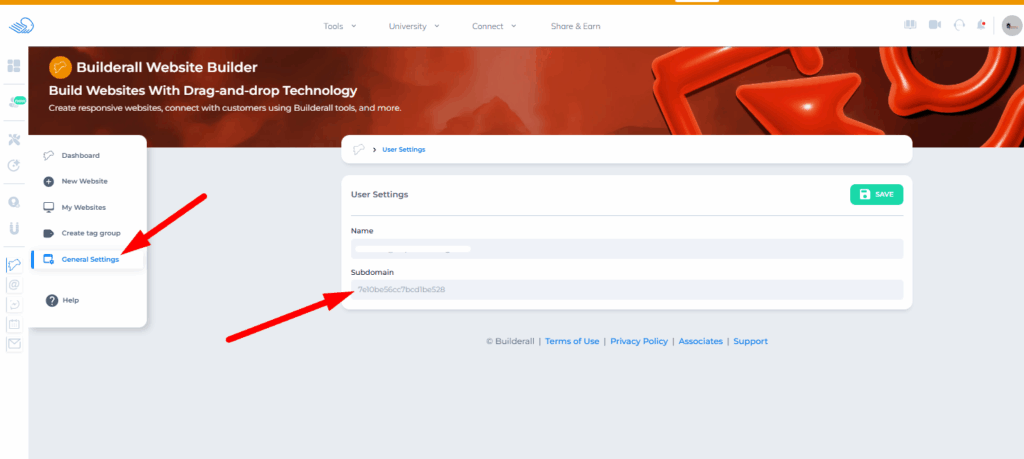
When this happens
You change something like this:
Before:
7e10be56cc7bcd1be528
After:
mycompany
Result:
👉 all old links stop working
Why this happens
Because the address changed completely.
Real example
You had links inside:
- ads
- WhatsApp messages
- emails
Then you changed the subdomain.
👉 all of those old links stop working
How to avoid this problem
Before changing it:
👉 check everywhere that link is currently being used
How to fix it
👉 manually update all the links
COMPLETE FAQ, Domain, DNS, and Publishing Cluster
My domain does not open. What could it be?
In most cases:
- DNS is still propagating
- the configuration was done recently
- local cache is causing the issue
It works on my phone, but not on my computer. Is that an error?
Not necessarily.
It could be:
- cache
- local DNS
- network related
Do I need to edit DNS if I bought the domain here?
No.
👉 you only need to activate it through email
Does SSL really take time?
Yes.
👉 it can take up to 2 hours
I changed the site and nothing updated. Is that an error?
Usually not.
👉 use /cheetah/version
Can I change the Name Servers?
Yes, but be careful.
👉 this can affect email and other services
Why did my email stop working after connecting the domain?
Most likely:
👉 you changed the Name Servers and did not recreate the necessary records
What does “domain already connected” mean?
It means the domain is already linked to another website or account.
TROUBLESHOOTING, quick diagnosis by scenario
Scenario 1: Site does not open
Check:
- the domain was typed correctly
- DNS is configured
- the domain is active
- propagation time has passed
Scenario 2: It works in one place but not in another
Do this:
- test on another network
- clear cache
- restart the modem or router
- use public DNS
Scenario 3: Site does not update
Do this:
- use /cheetah/version
- use /cheetah/remove
- test in an incognito window
Scenario 4: Domain does not connect
Check:
- whether it is already connected somewhere else
- whether you followed the correct order
- whether you waited the required time, especially for Registro.br
Scenario 5: No SSL
- wait up to 2 hours
- check Cloudflare
- after that, contact support
Scenario 6: Email stopped working
Check:
- Name Servers
- MX and TXT records